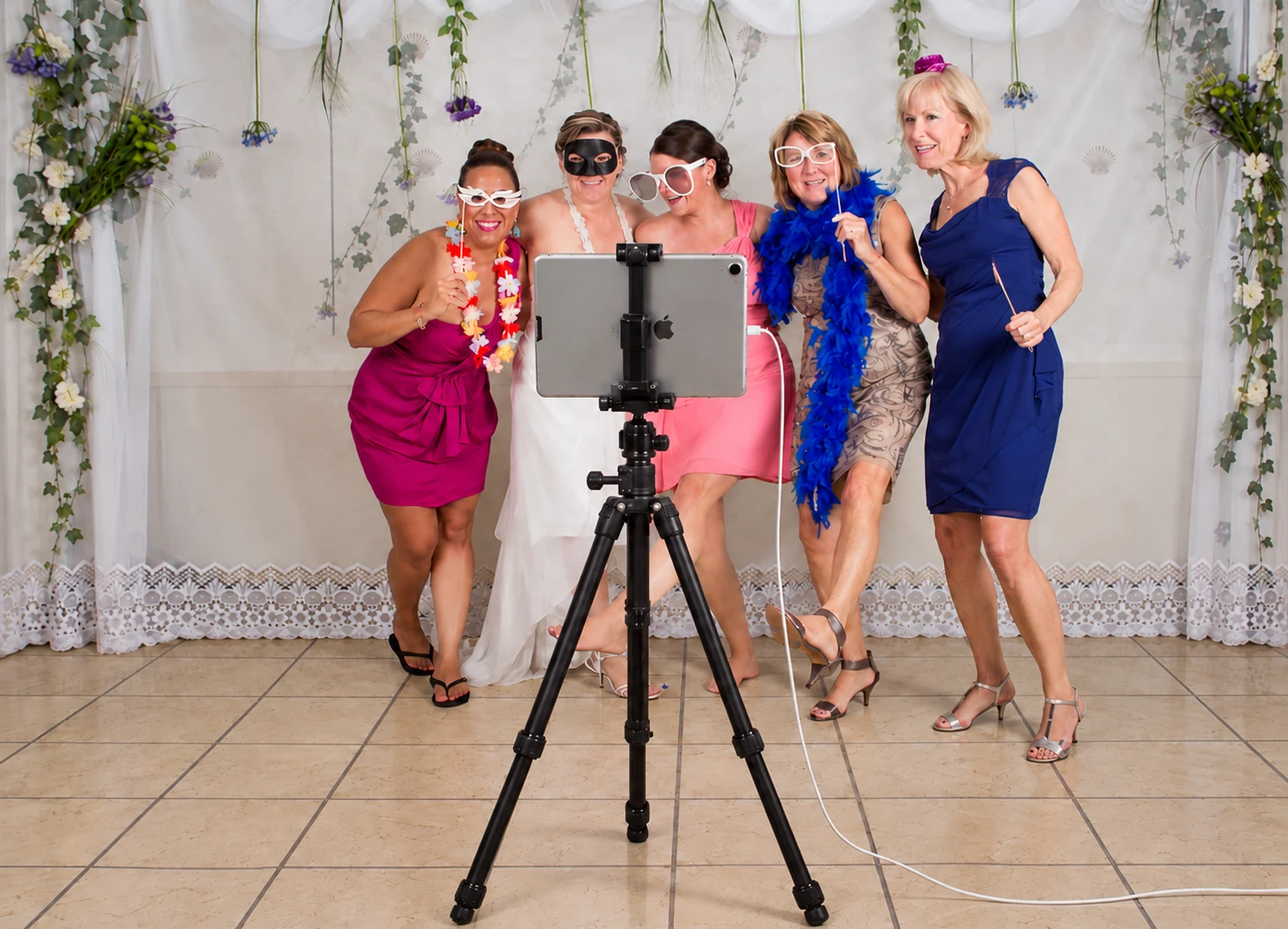
Can an iPad work as a wedding photo booth? Margo & Manuel used Photo Booth App on an iPad at their wedding, and their guests loved it. The setup paired a tripod-mounted device with a floral backdrop and props: a place for the couple and their guests to take playful photos together.
This customer story shows the real booth and photos from their celebration. It also includes wedding template examples and a practical checklist for couples planning a similar setup.
The iPad wedding photo booth setup
For Margo & Manuel’s wedding, an iPad running Photo Booth App sat on a tripod in front of a light floral backdrop. The setup photo shows the device facing the guests, with room for a small group to pose together.
The backdrop gave the photos a consistent setting. Oversized glasses and feather boas added a playful detail, while the iPad kept the booth in one place. You can see the same background and props across the guest photos below.
When planning a similar DIY wedding photo booth, start with the camera angle and the space people will stand in. Take a test photo with two people, then a small group. Leave room around the edges so heads and props fit comfortably, and keep the stand and cable clear of the walkway.
Our iPad photo booth setup guide covers mounting, lighting, power, and a full test session before guests arrive.
Real wedding photos: the guests loved it
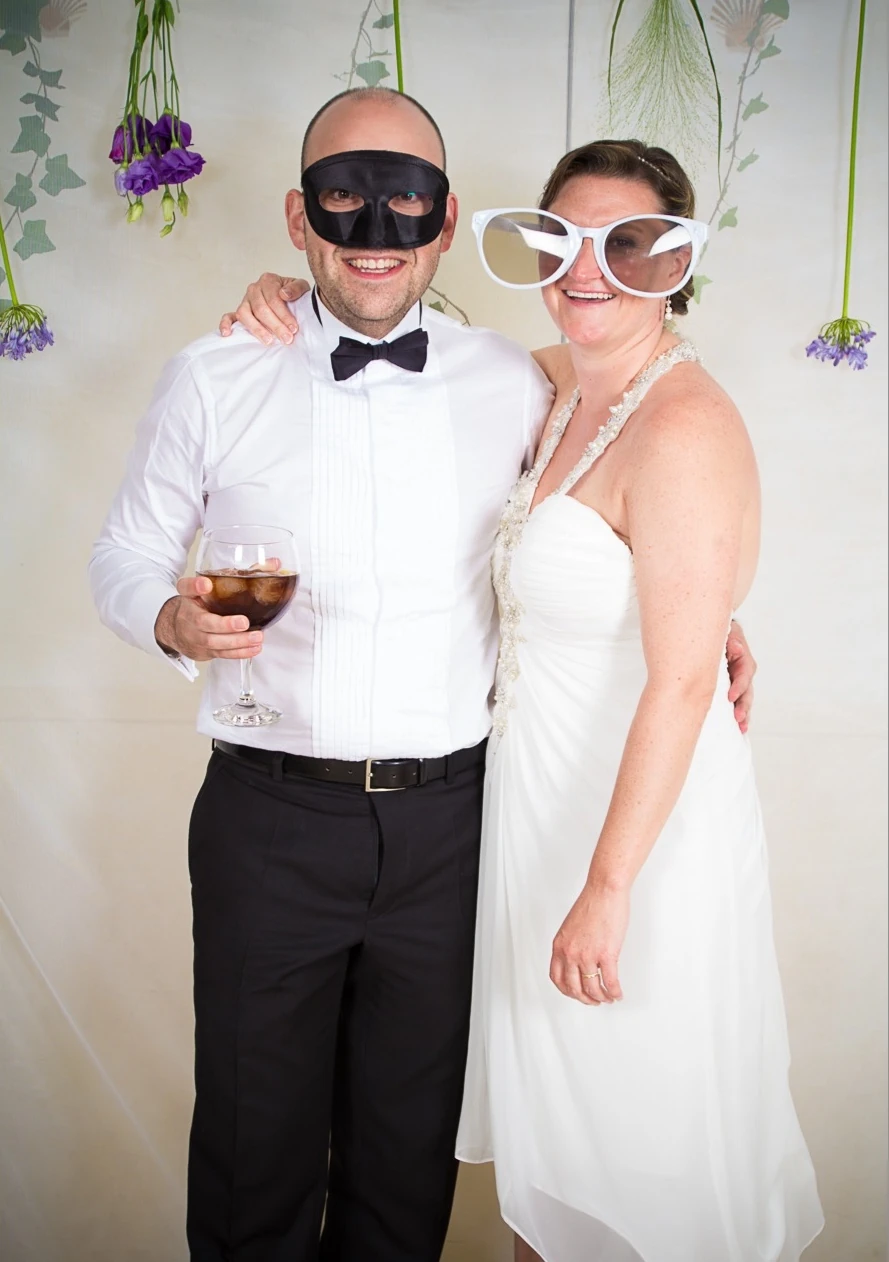
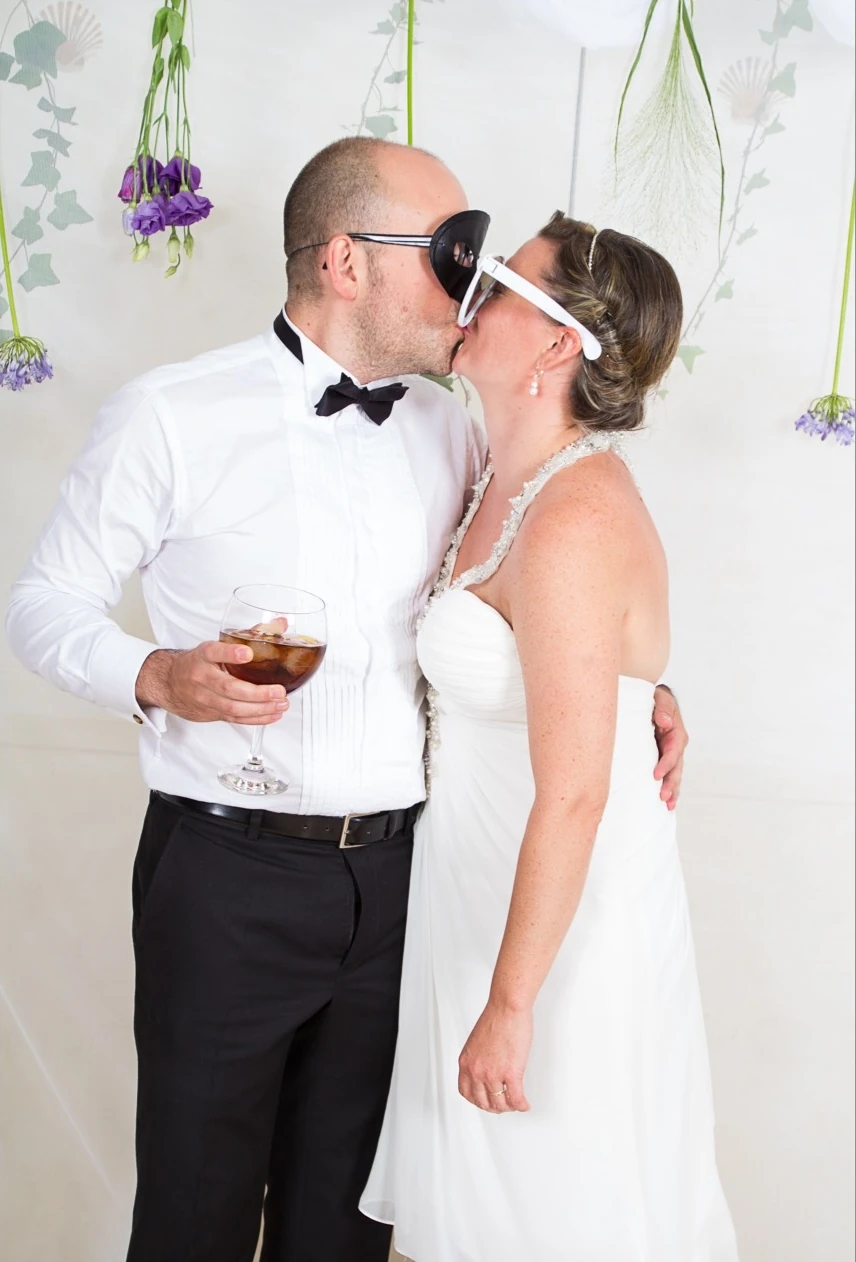
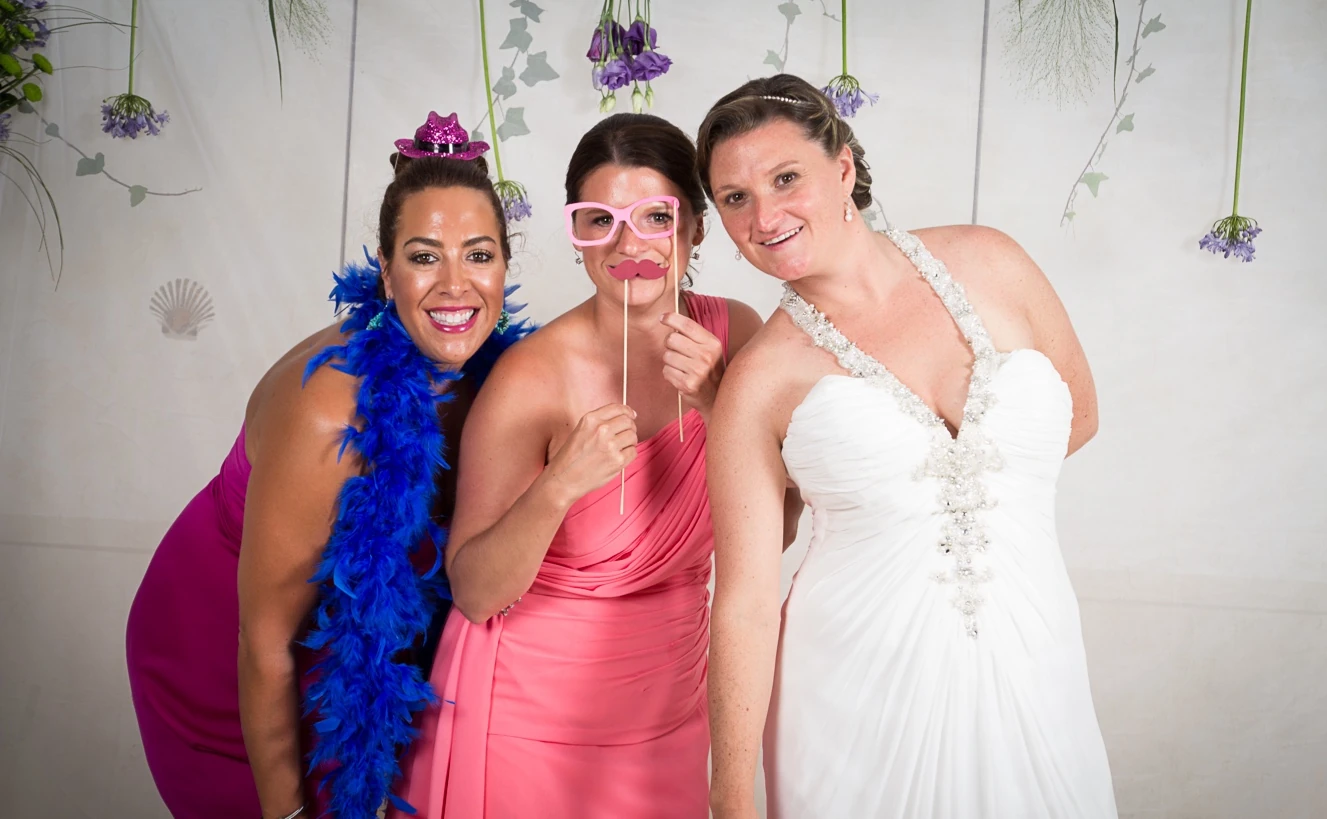
The booth was a hit with the wedding guests. The photos capture the couple, small groups, smiles, and plenty of playful poses — the kind of moments that make a wedding feel personal.
A kiss from the couple, friends posing together, and guests trying the props show different ways people used the booth. These are real photos from the wedding, shared by Margo & Manuel.



Wedding photo strips and floral template examples
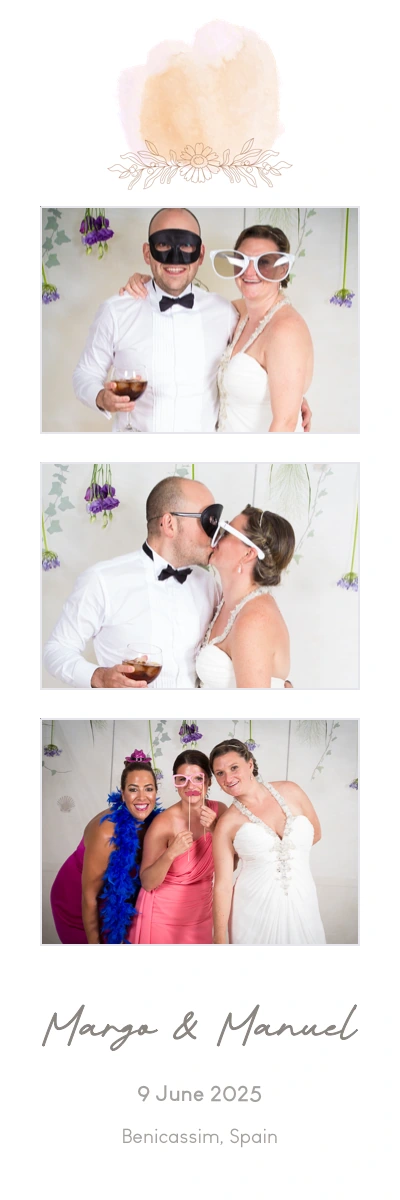
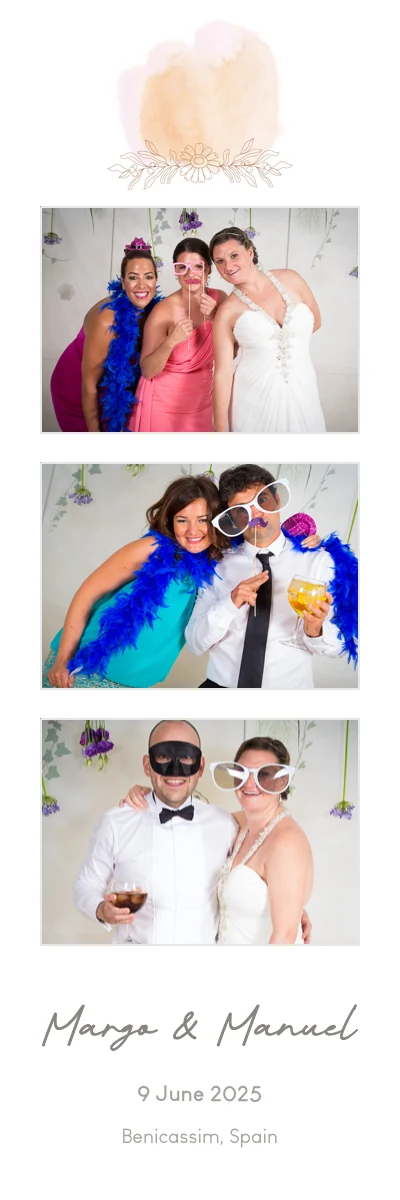
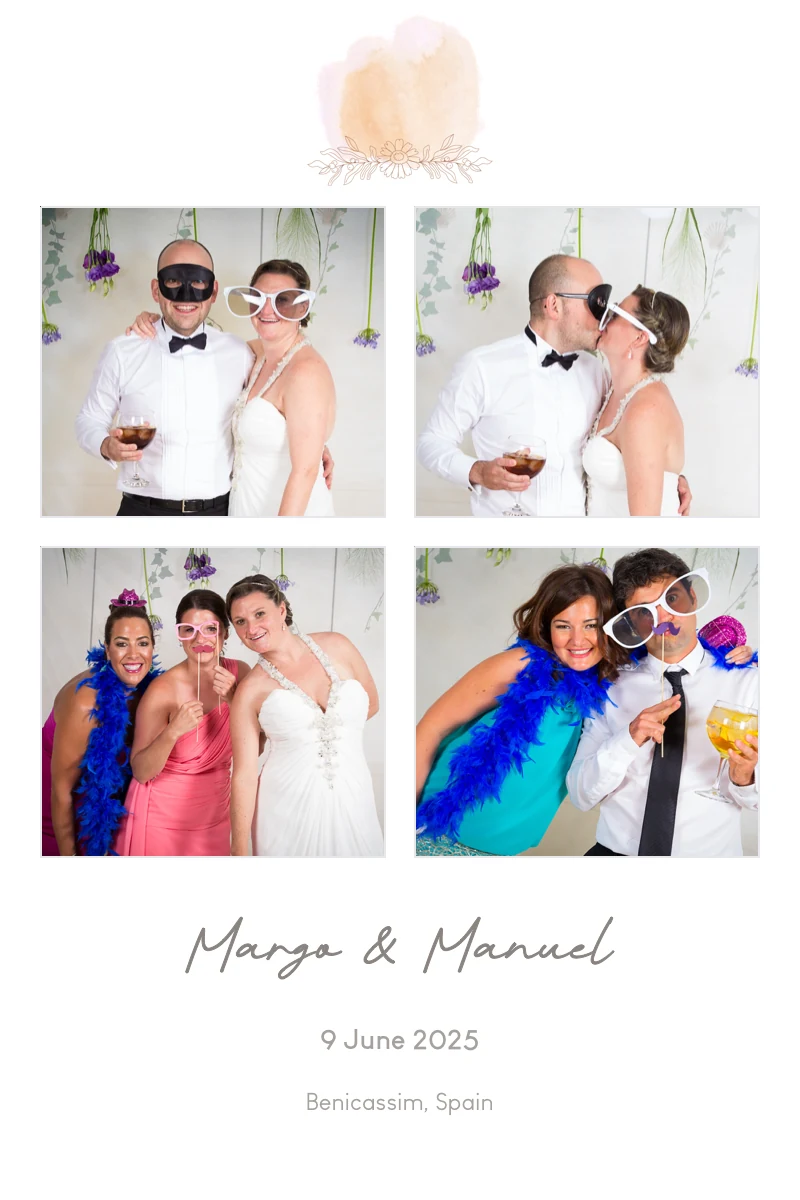
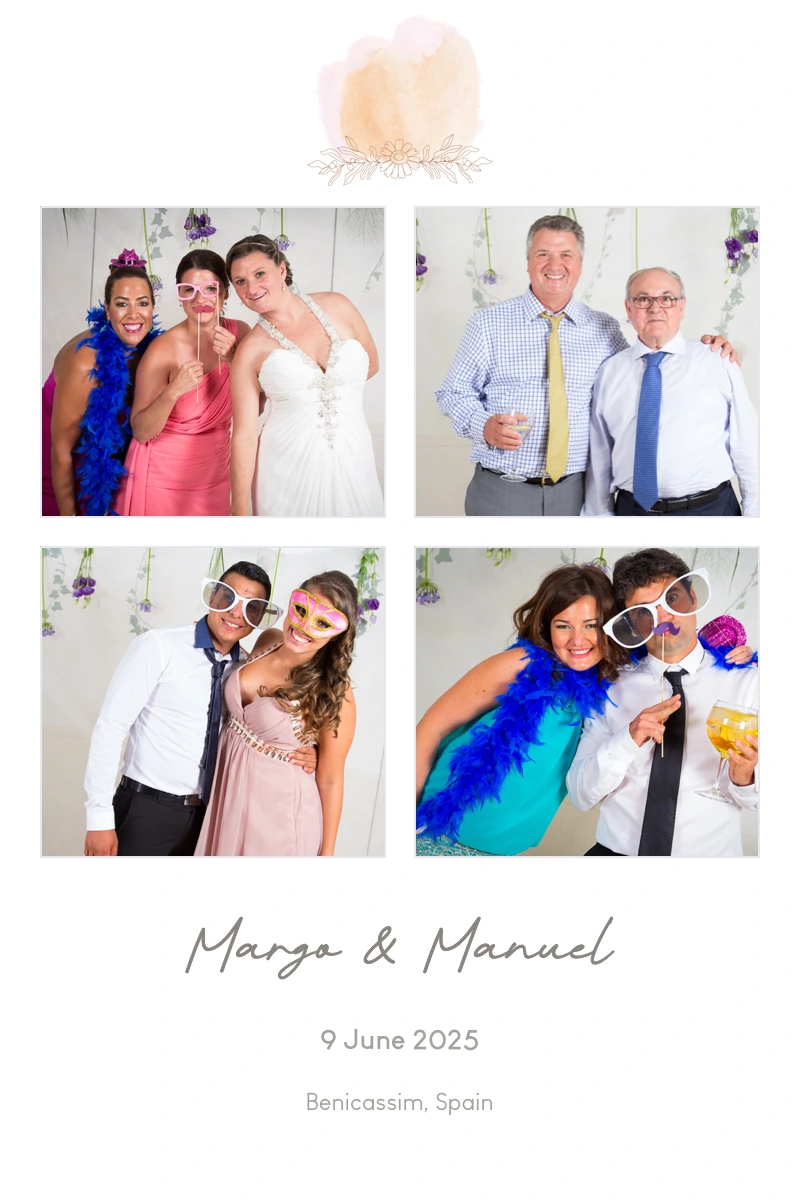
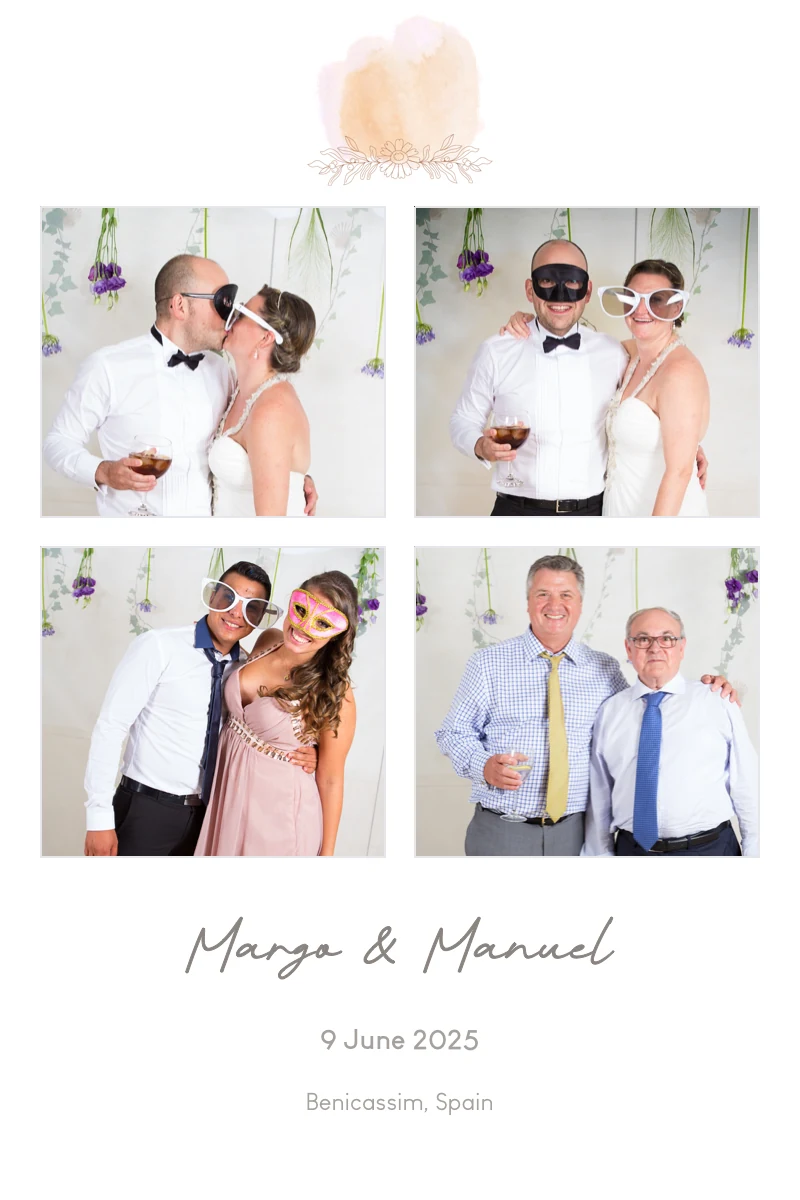
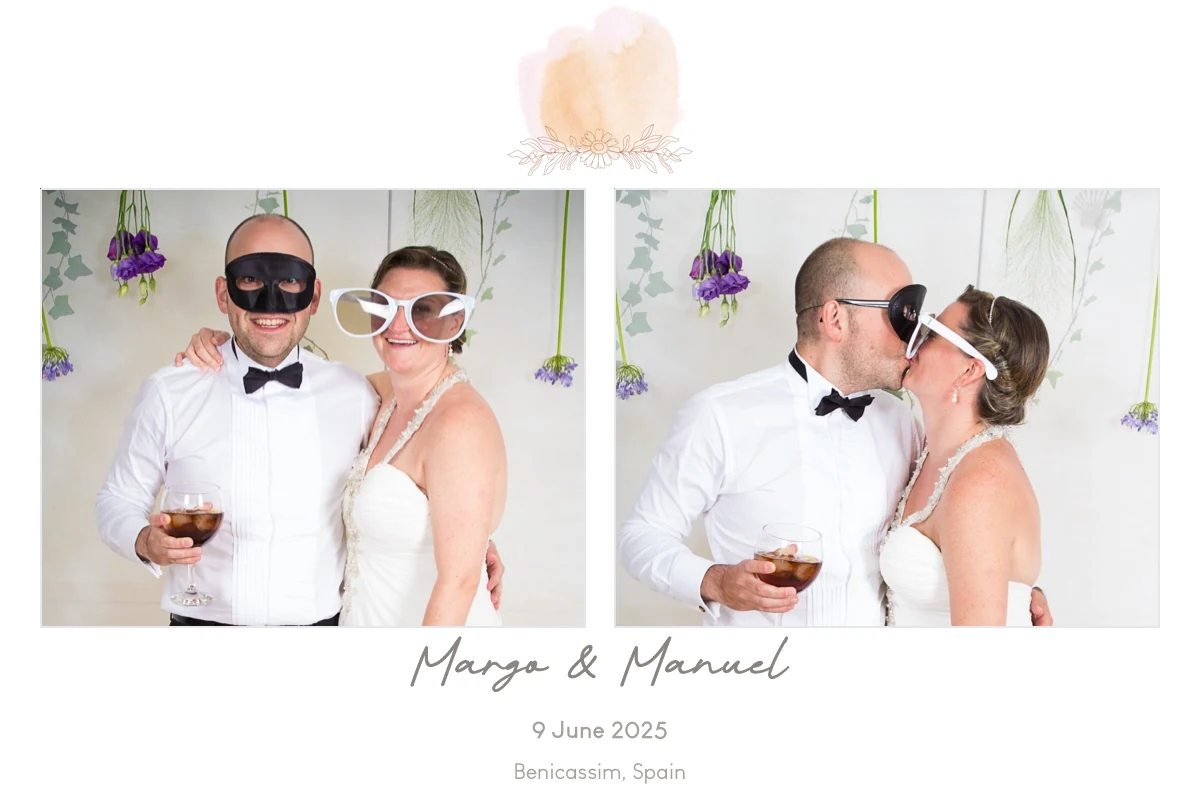
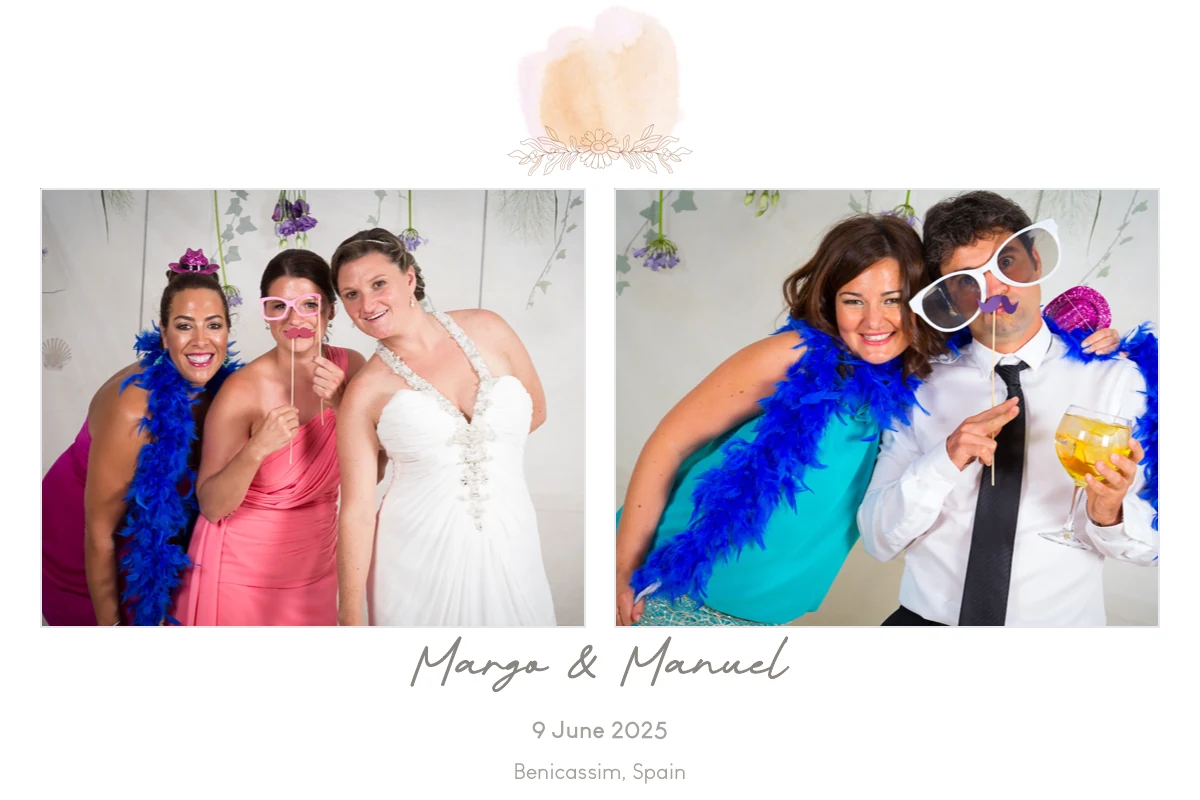
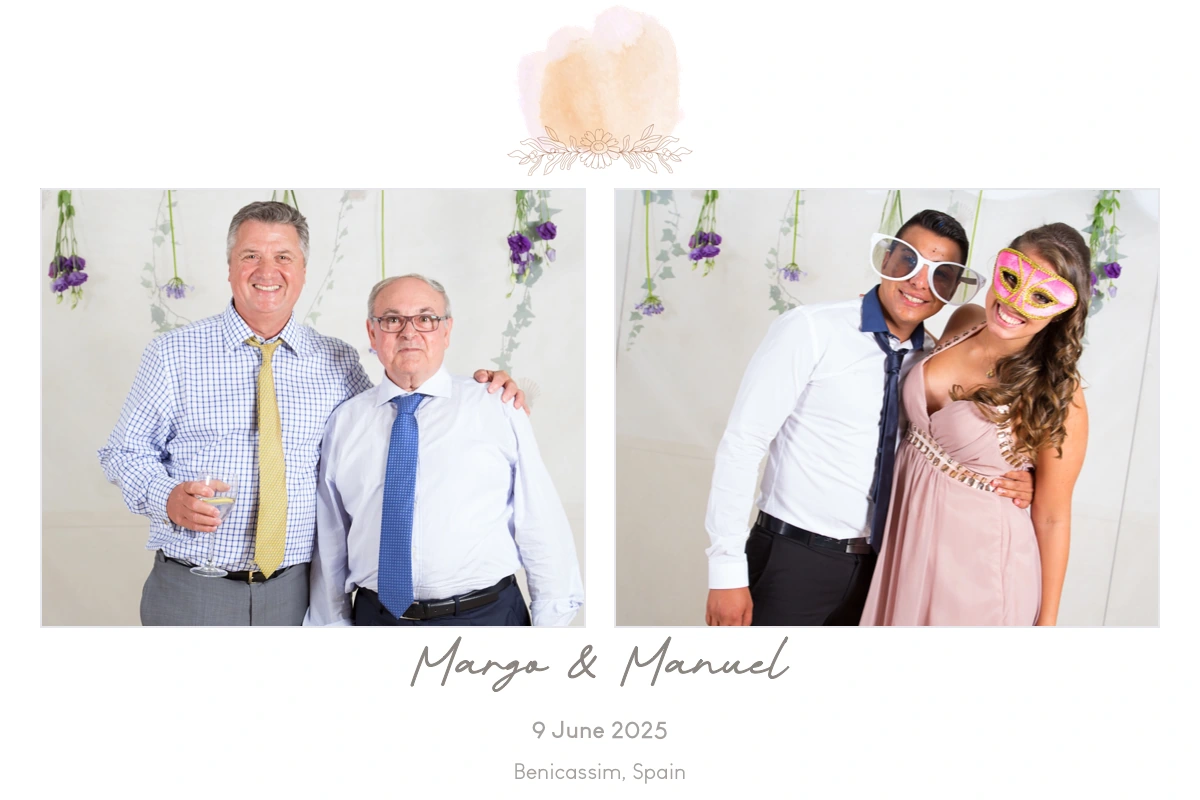
A wedding design gives the photos a shared look. These example layouts use the wedding photos in Photo Booth App’s Wildflower template, adapted as a photo strip, a portrait layout, and a landscape layout.
The three formats below show different ways to arrange the same wedding memories. A 2 × 6 photo strip puts a sequence of photos in a narrow keepsake. A 4 × 6 portrait layout gives several moments space on one page. A 6 × 4 landscape layout suits a wider pair of photos.
The layouts below are new template examples made from the wedding photos. Choose your own artwork and names in the photo booth template guide, then check faces, margins, and text at the final size.

How to set up your own iPad wedding photo booth
Use the wedding above as inspiration, then test your own venue and device. Here is a checklist to plan and test your own setup before guests arrive.
- Prepare the iPad and stand. Install Photo Booth App on a supported device, check storage, and use a mount that holds the iPad securely. Plan how to keep it powered during the reception.
- Choose the backdrop and camera angle. Leave space for small groups and a queue. Test the venue lighting at the time of day you will use the booth, and move cables away from guests’ feet.
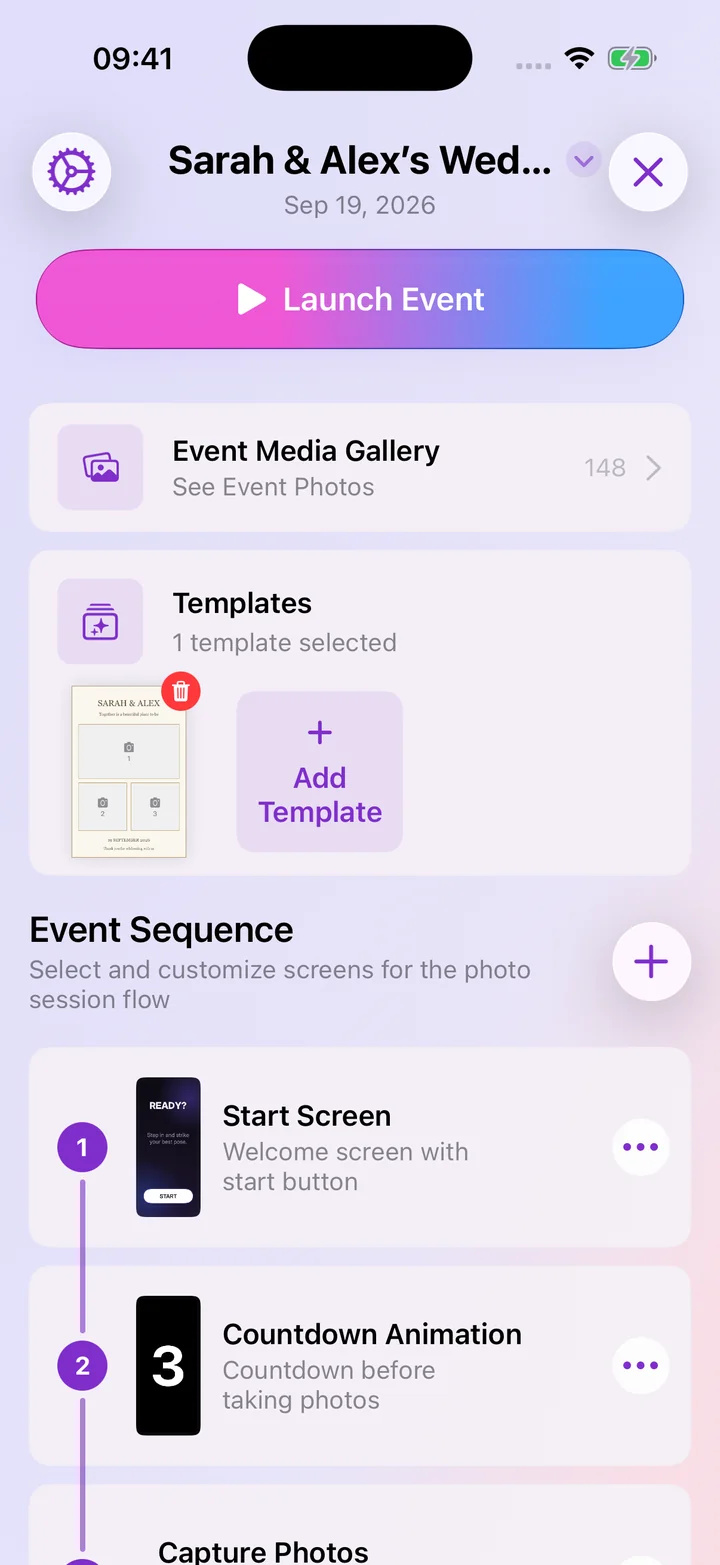
- Create an event and choose a wedding template. Add your names and artwork, then take a test photo to check that the design does not cover faces. Preview the finished layout at its intended size.
- Decide how guests will receive photos. Test the delivery option you plan to offer. Online galleries, QR delivery, email, messages, and sync require a connection; capturing and saving locally can work offline. See the guest photo sharing guide.
- Test printing if you want physical keepsakes. A template preview is not a printer test. Use a compatible AirPrint printer and check its connection, paper, and a real print before the wedding. Follow the photo booth printing checklist.
- Run the guest flow from start to finish. Take a photo, check the result, try delivery, and return to the start screen. Consider Guided Access for an unattended iPad and choose someone to check the booth during the event.
For backdrop, props, and guest-book ideas, see our wedding photo booth ideas guide.
Questions about a DIY wedding photo booth
Can I use my own iPad as a wedding photo booth?
Yes. Photo Booth App turns a supported iPad into an event photo booth. You still need a secure stand, power, suitable lighting, and a test session. Margo & Manuel’s story shows one real example of an iPad booth at a wedding.
Does the photo booth need venue Wi-Fi?
Capturing and saving photos locally can work without internet. Online sharing and sync need a connection, so test the venue network if those are part of your plan. Arrange delivery ahead of time rather than relying on untested Wi-Fi during the reception.
Can I personalize wedding photo strips?
Yes. Choose a template or add your own artwork, then customize the layout for your event. The floral examples above show photo strips, portrait layouts, and landscape layouts using the wedding photos.
What if I want guests to take home printed photos?
Plan for a compatible AirPrint printer, supplies, and a tested printer connection. Check a physical copy for cropping and readability before the event.
Make your wedding booth feel like your celebration
Margo & Manuel’s photos show the value of a shared place to gather: the couple, friends, and guests making memories together. Start with a setup that fits your space, choose a design that feels like your wedding, and test the full experience before the reception.