Photo Booth App lets you print event photos from an iPhone or iPad using a compatible AirPrint printer. Check the printer, network, and photo layout together before the event.
# What you need
- Photo Booth App on an iPhone or iPad running iOS or iPadOS 15 or later.
- An AirPrint-compatible printer, suitable photo paper, and enough ink or other printer supplies.
- A network that allows the device and printer to communicate.
- Power for both the booth device and printer, with room for guests to collect prints.
Confirm AirPrint support for the exact printer model with its manufacturer or Apple’s AirPrint guide. A printer having Wi-Fi or Bluetooth does not by itself mean it supports AirPrint.
# Test the whole print workflow
- Connect the iPhone or iPad and printer to the same Wi-Fi network.
- Check that the printer is awake and loaded with the intended paper.
- Create your event and select a template that fits that paper size.
- Take a photo in the booth and print the result.
- Check the crop, orientation, faces, and text on the physical print.
- Print a second photo so you can check the time between guests and where finished prints collect.
If your design uses a photo-strip layout, check whether it prints on a larger sheet that needs cutting. Do not assume the printer will cut strips automatically. Leave important text and faces away from edges that may be trimmed.
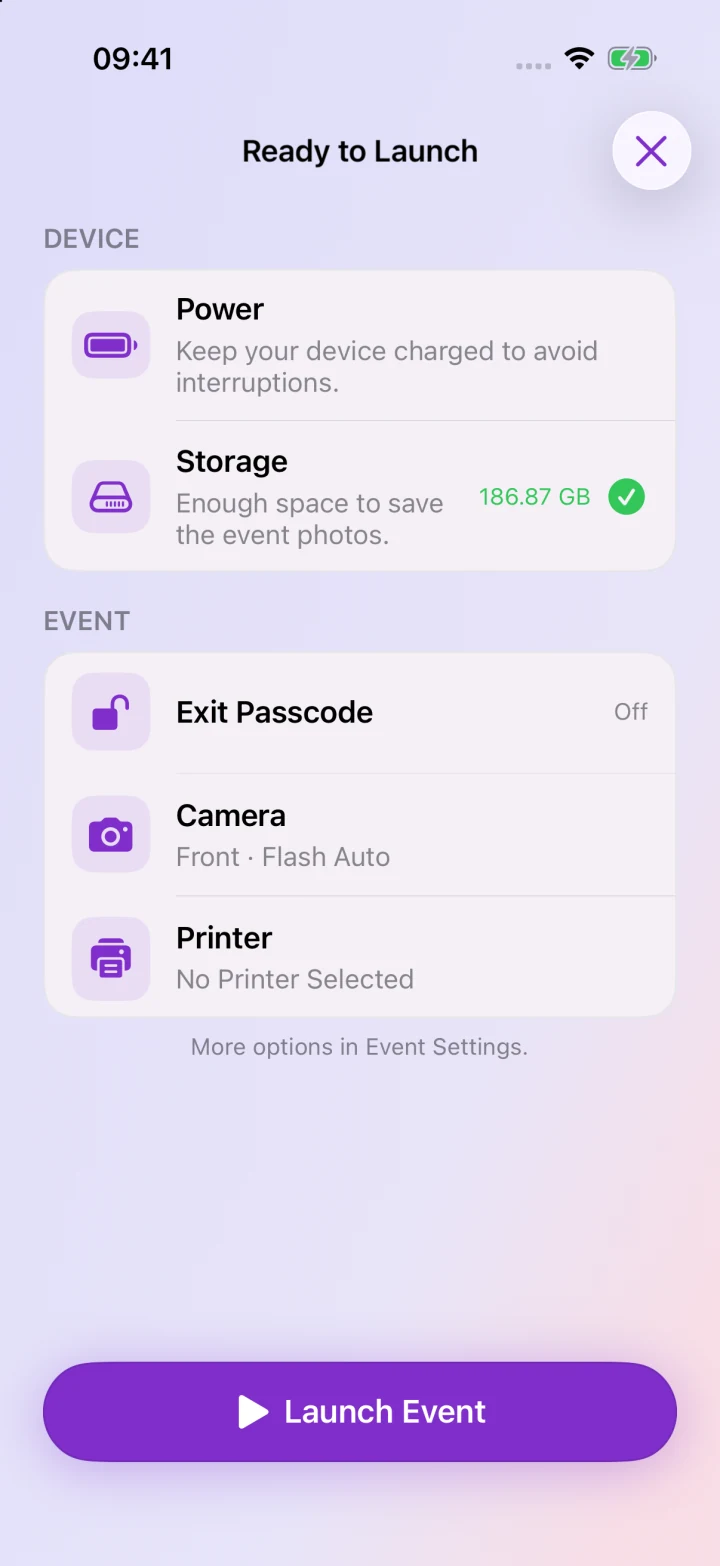
# If the printer does not appear
First check that both devices are on the same network and that the printer has finished starting up. Guest Wi-Fi networks may isolate devices, preventing the iPad from finding the printer even when both have internet access.
Try printing a photo from another app on the same device. If that also fails, check the printer’s network setup and AirPrint instructions. If other apps print successfully but Photo Booth App does not, contact support with the printer model, iOS version, app version, and what happens when you try to print.
# Keep the booth moving
Run several prints before guests arrive, have spare supplies nearby, and choose someone to check the printer during the event. Offer a tested digital delivery option too, so a paper or ink problem does not stop guests receiving their photos.
For the rest of the booth setup, follow the iPad setup checklist. For creating a matching layout, see photo booth templates.