PHOTO BOOTH APP FEATURE
Photo sharing for guests
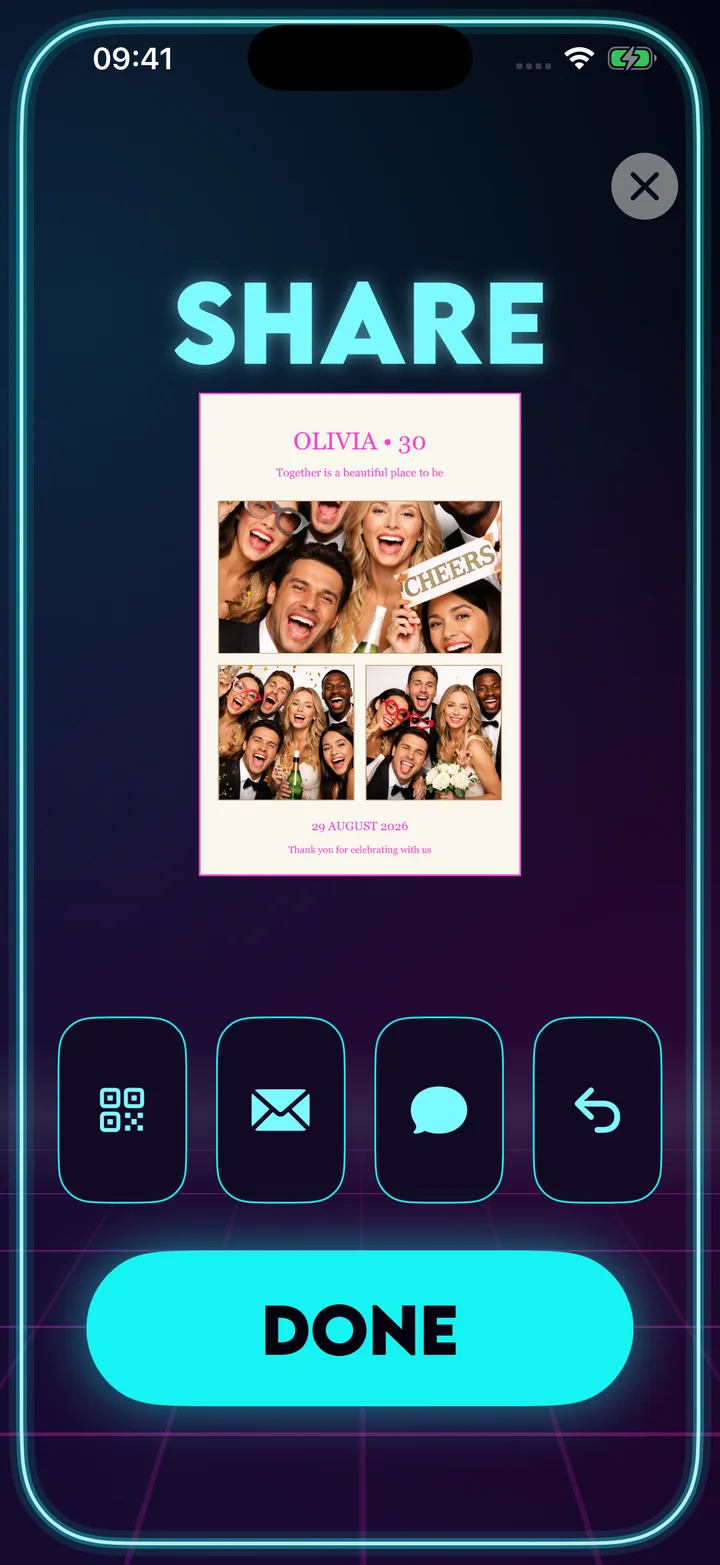
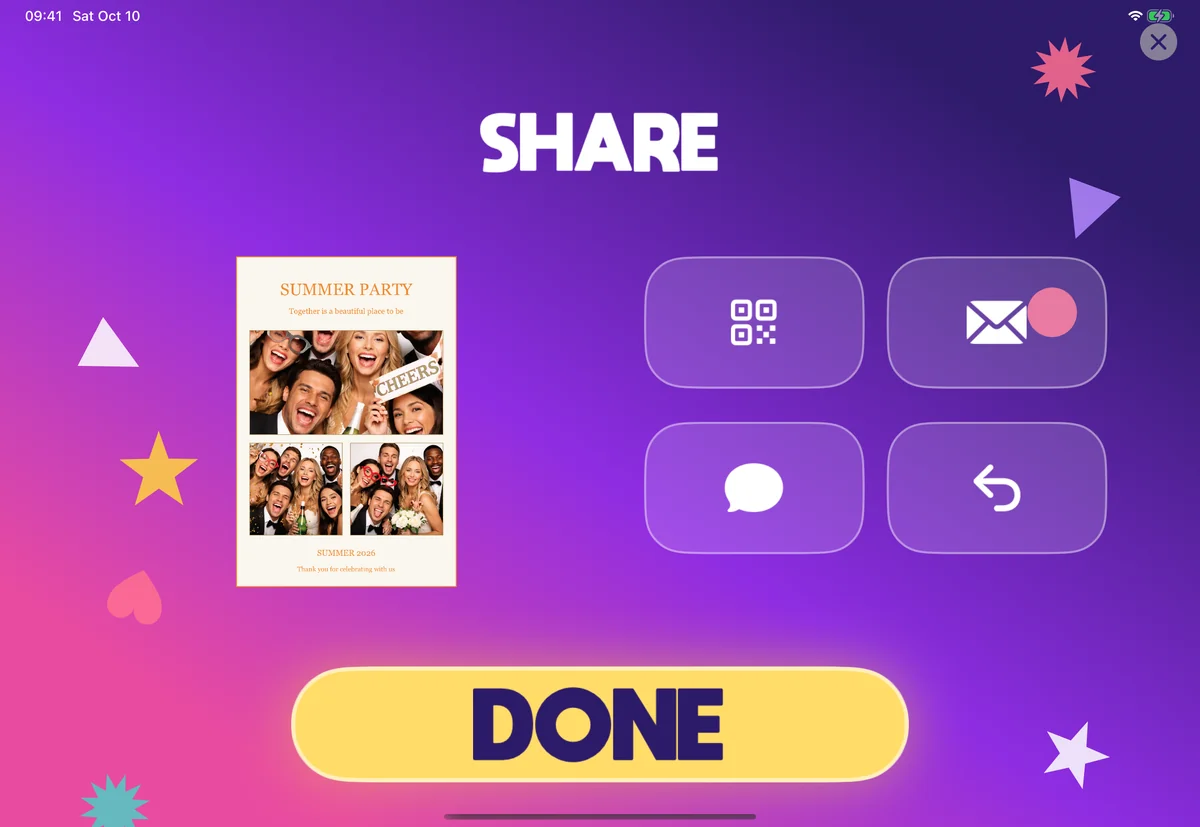
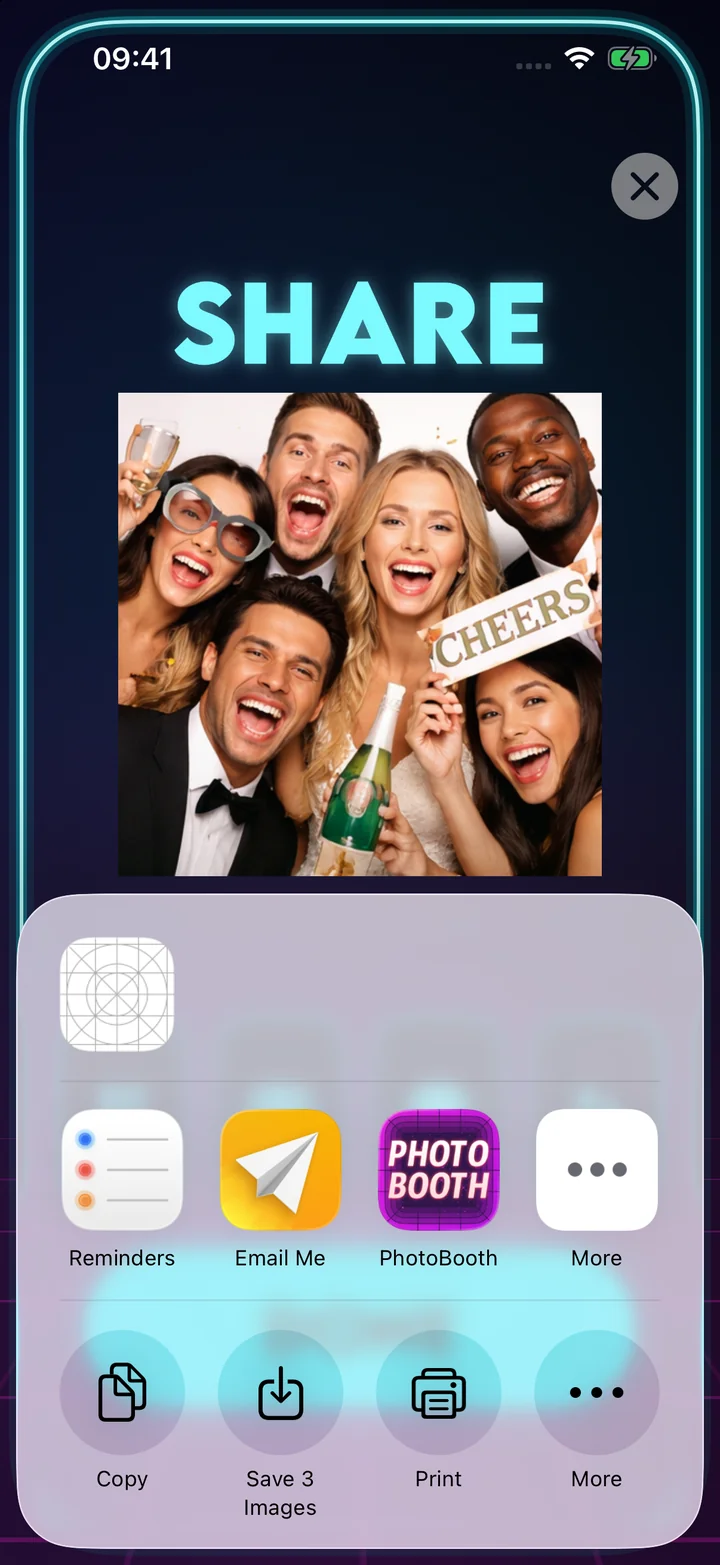
Let guests choose from the sharing options you turn on: AirDrop, QR codes, email, and messages. Guests can receive their photos without installing Photo Booth App.
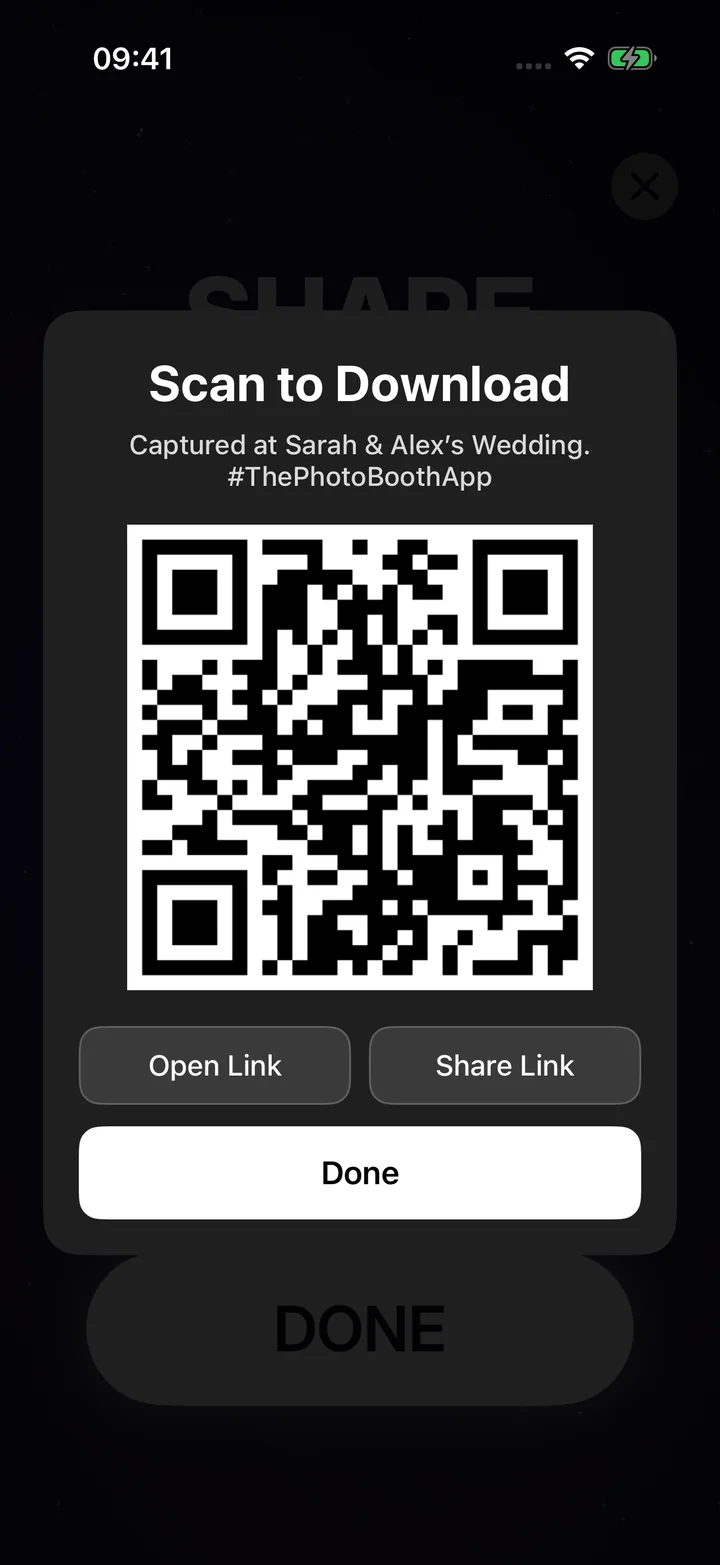
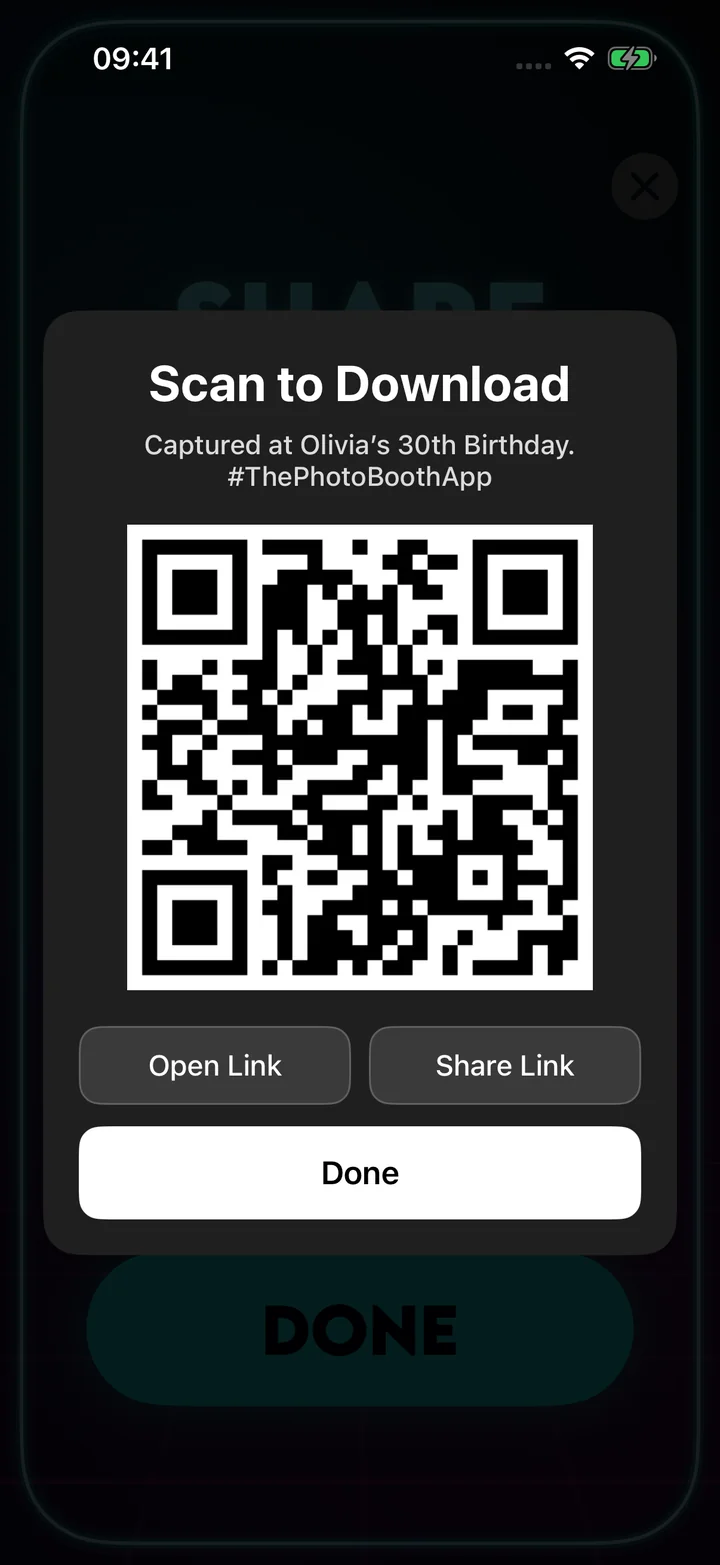
Try sharing to a guest phone on the venue’s Wi-Fi. Online sharing needs internet. The QR screen shown here uses an example link.
How it works
- Choose the sharing options guests will see for your event.
- Guests take their photos and see the finished layout on the sharing screen.
- They pick how to receive it. With a QR code, a download code appears on the booth and guests scan it with their own phone to open the photo link.
- Before the event, try every option you’ve turned on with a guest phone on the venue’s Wi-Fi.
Common questions
Which option works for Android guests?
AirDrop is for nearby Apple devices. QR codes work from almost any modern phone, so keep a QR code or another option ready for guests who can’t use AirDrop.
Can the booth use a mobile hotspot?
Yes. QR code sharing works when the booth device is connected through a mobile hotspot. Test it before guests arrive.
Who can open a shared gallery link?
Anyone who has an active gallery link can view that shared gallery. For private events, decide who gets the link, how long to keep it available, and when to remove the gallery.