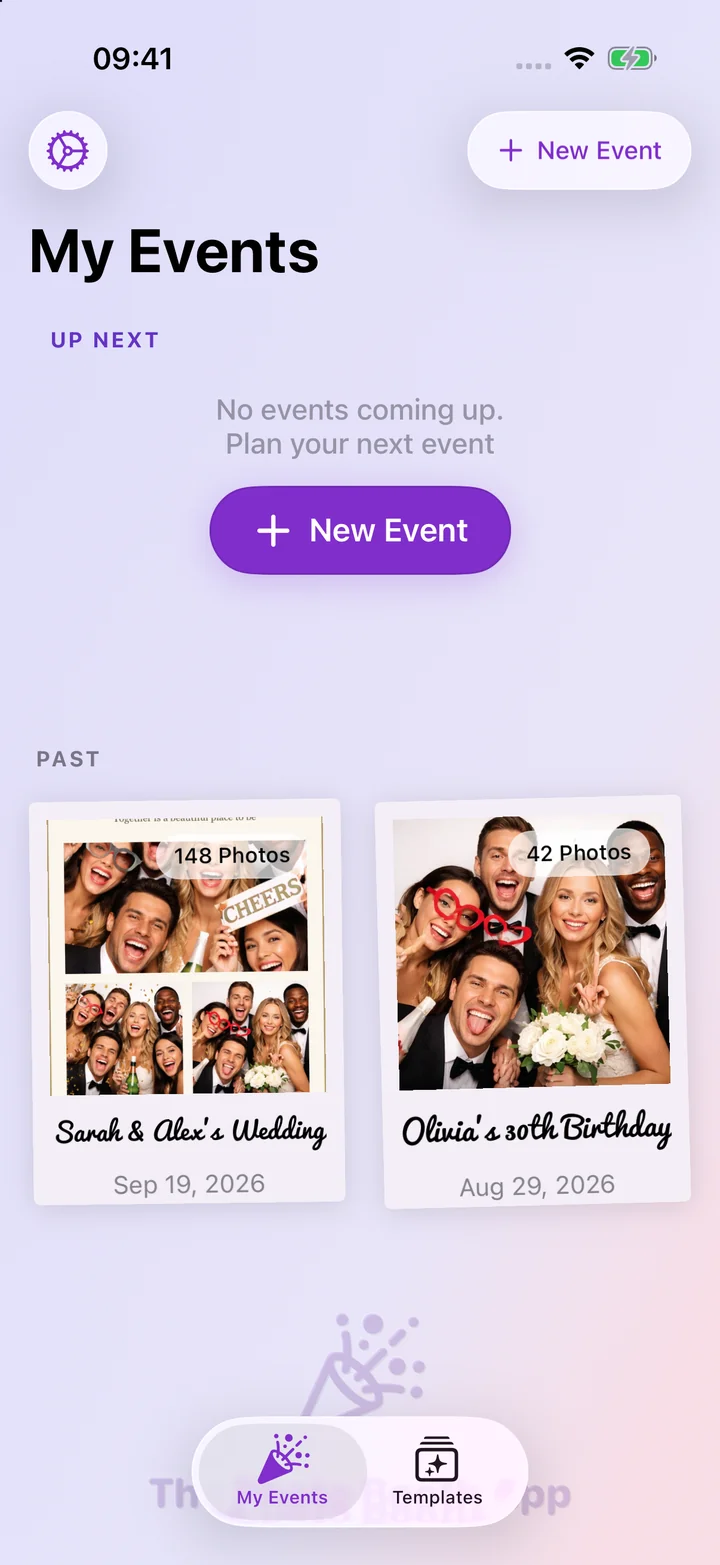
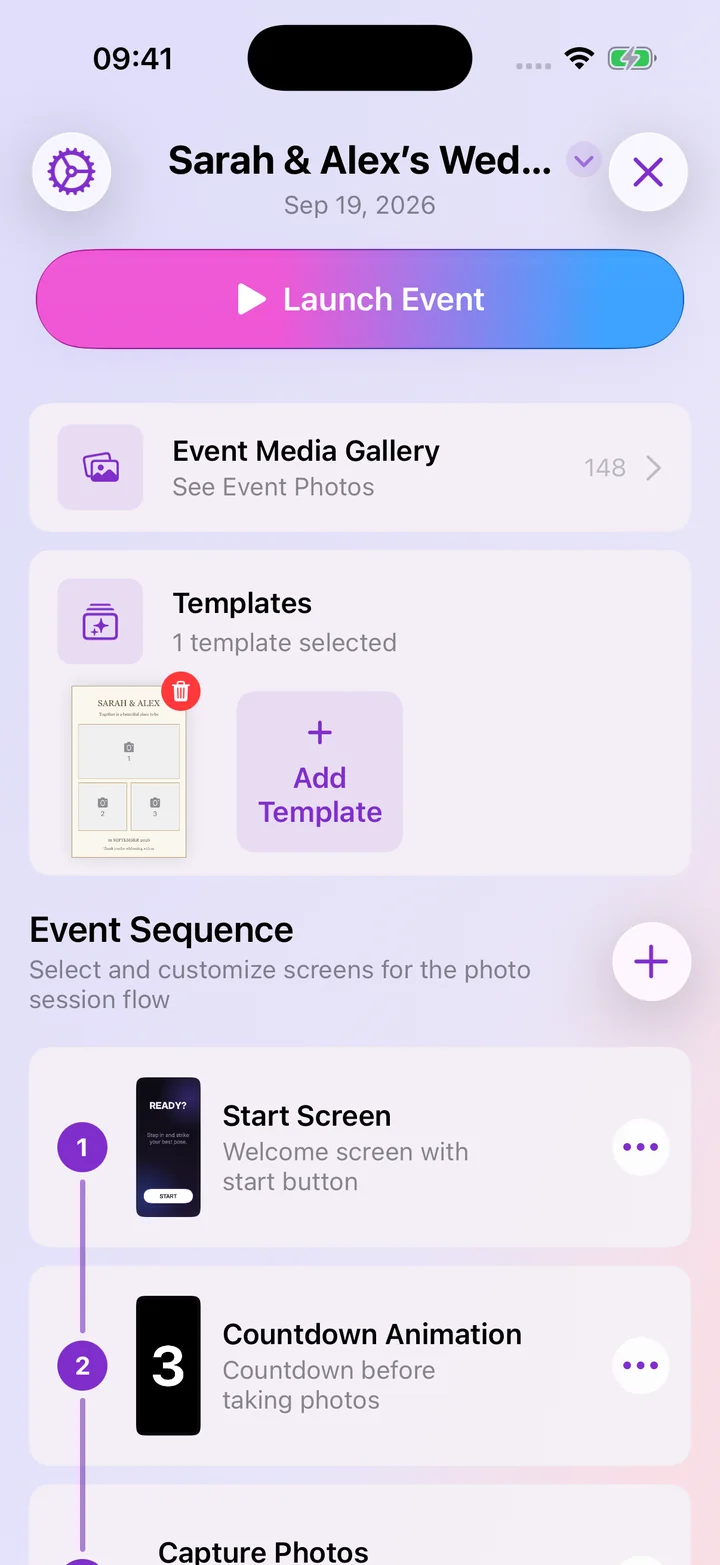
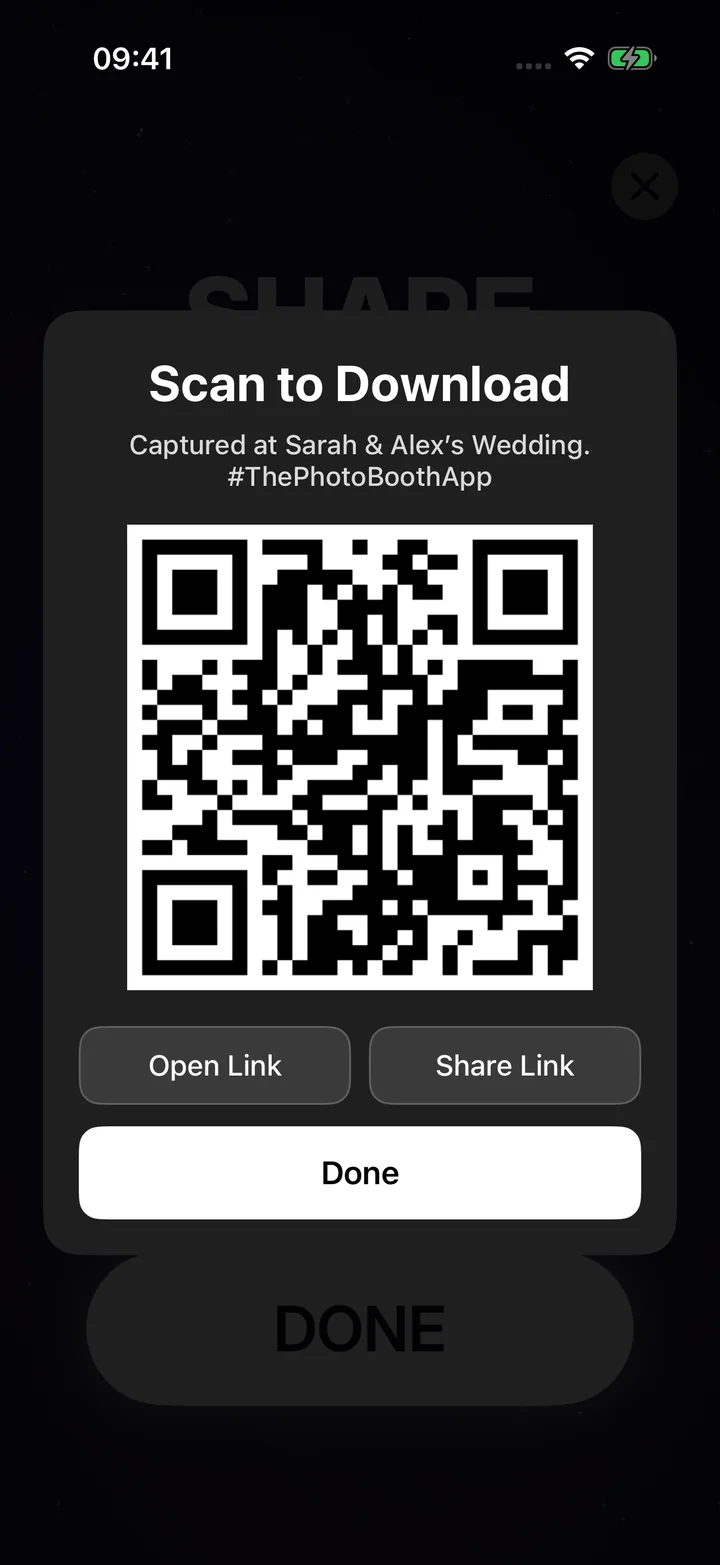
Your own guest screens
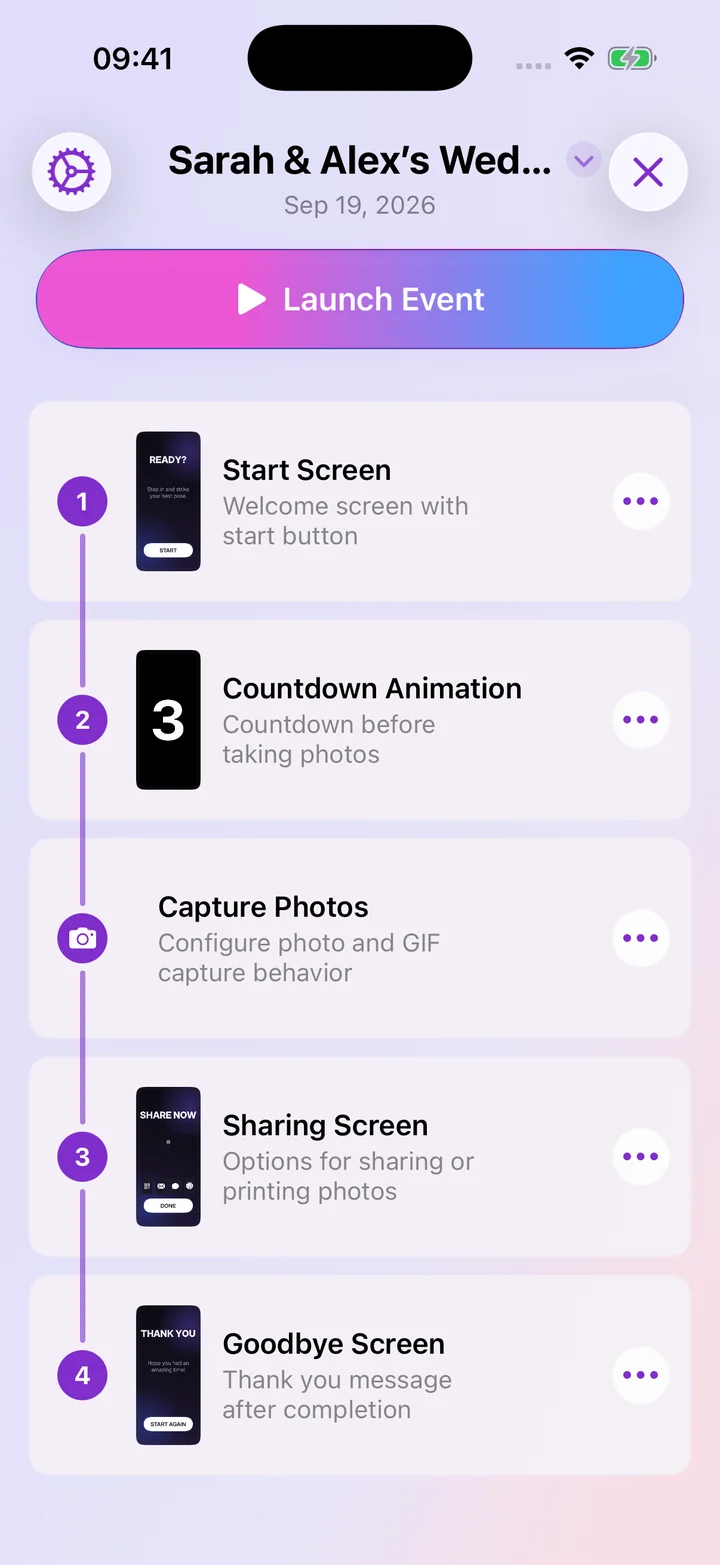
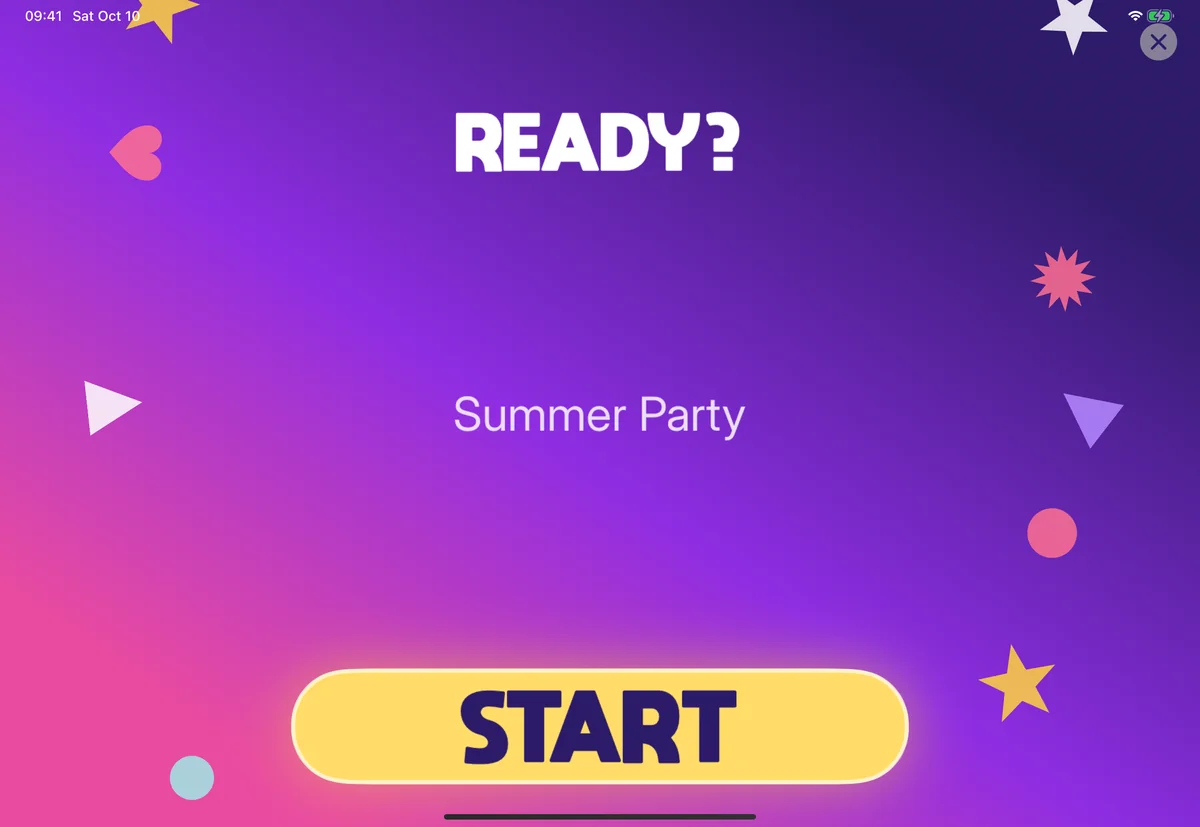
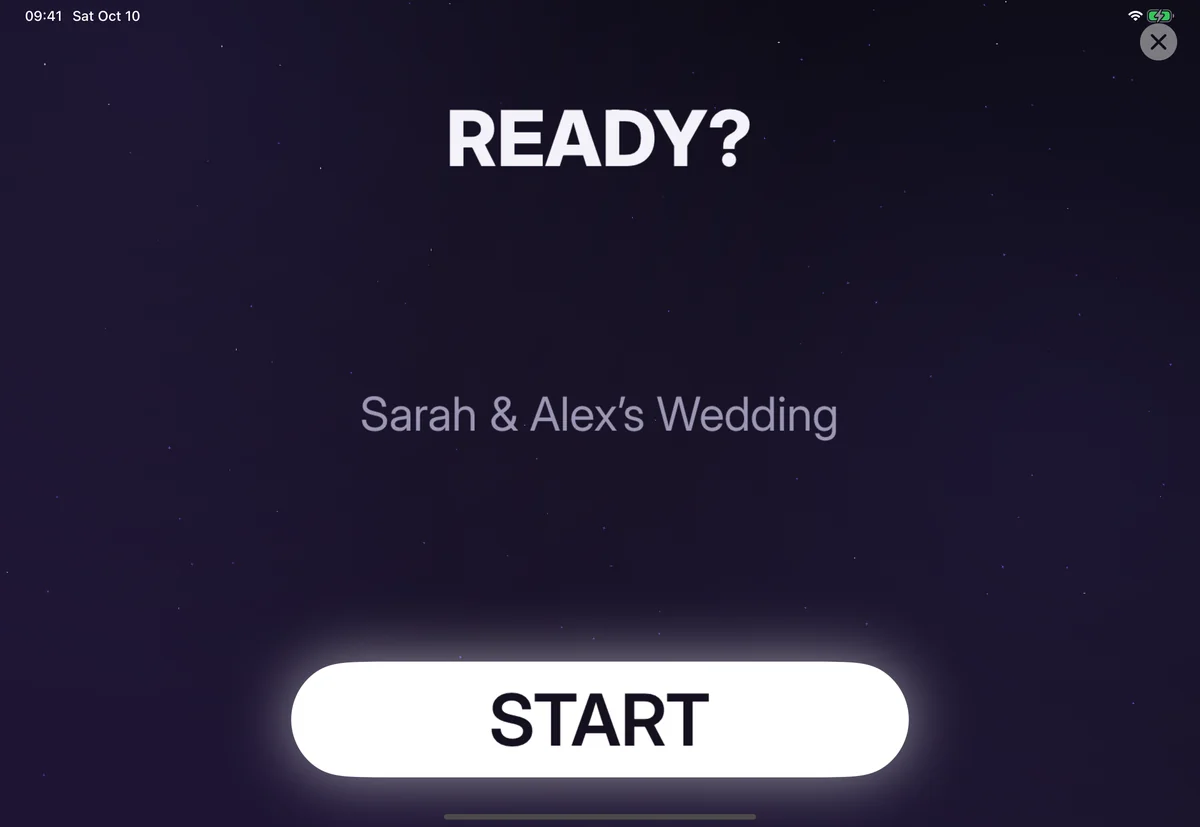
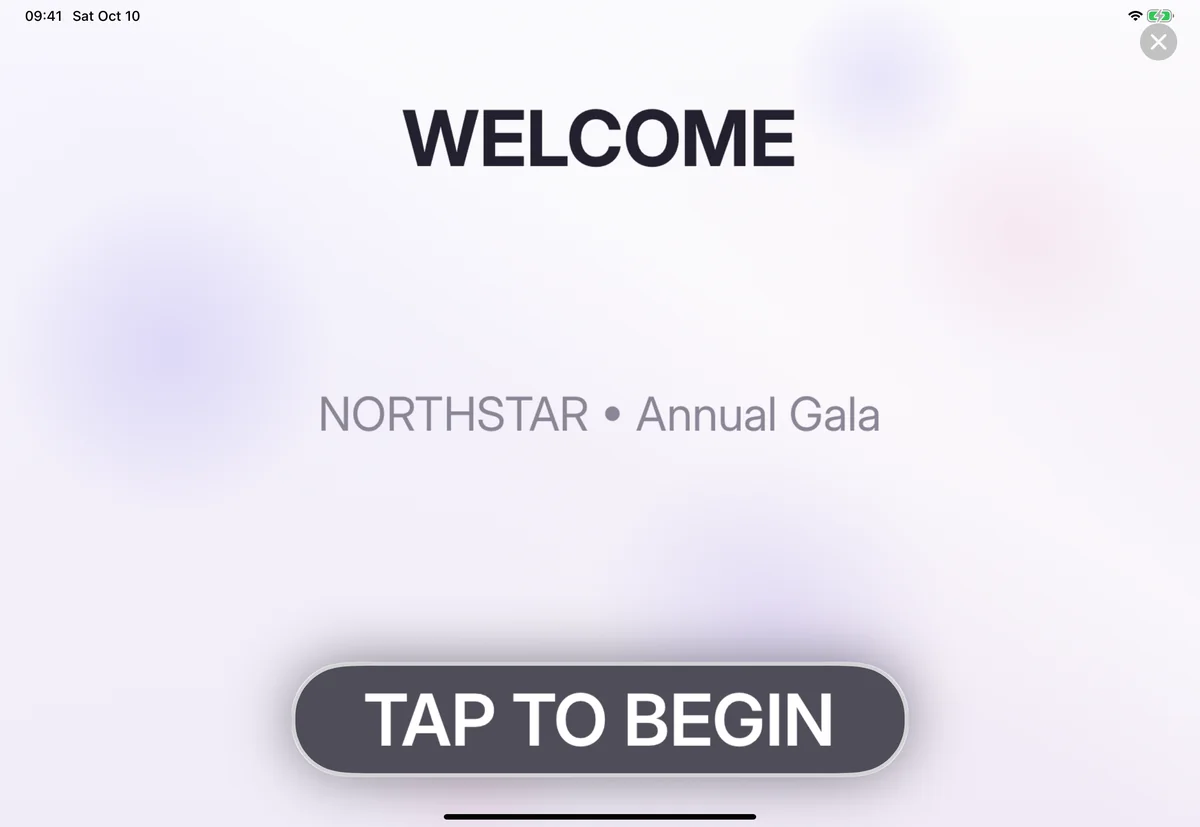
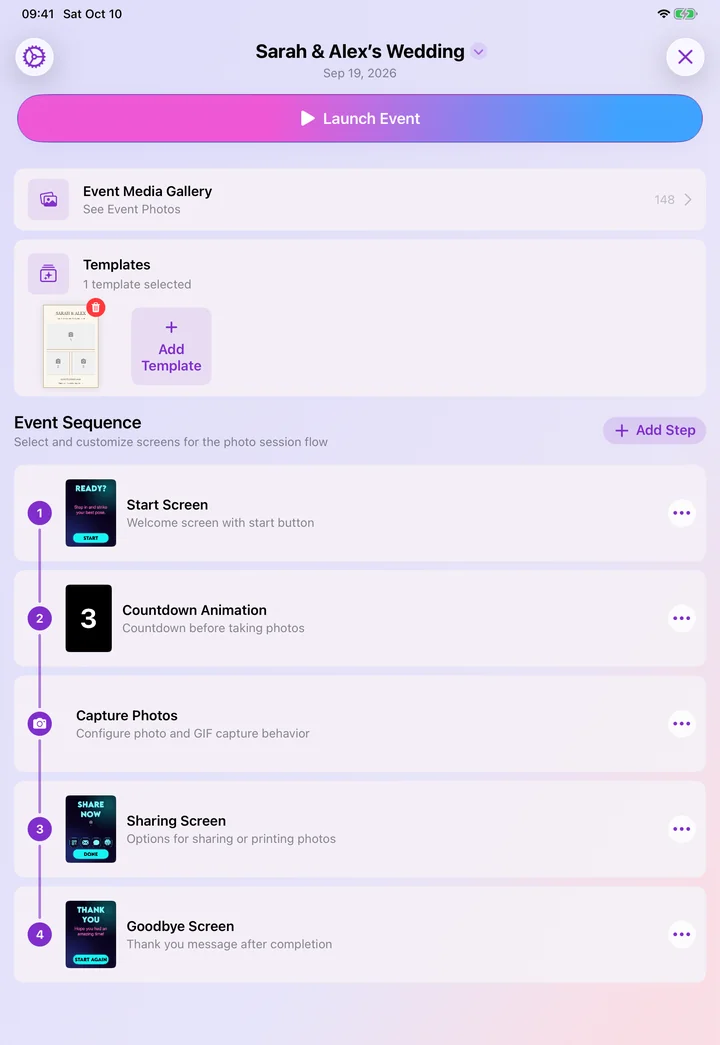
Choose the screens guests see from welcome to goodbye. Pick a countdown and add instructions, a notice, or a Photo/GIF choice if you need them.
Keep the steps easy to follow so guests can use the booth on their own. Run through every screen yourself and check the wording, countdown, and sharing choices.
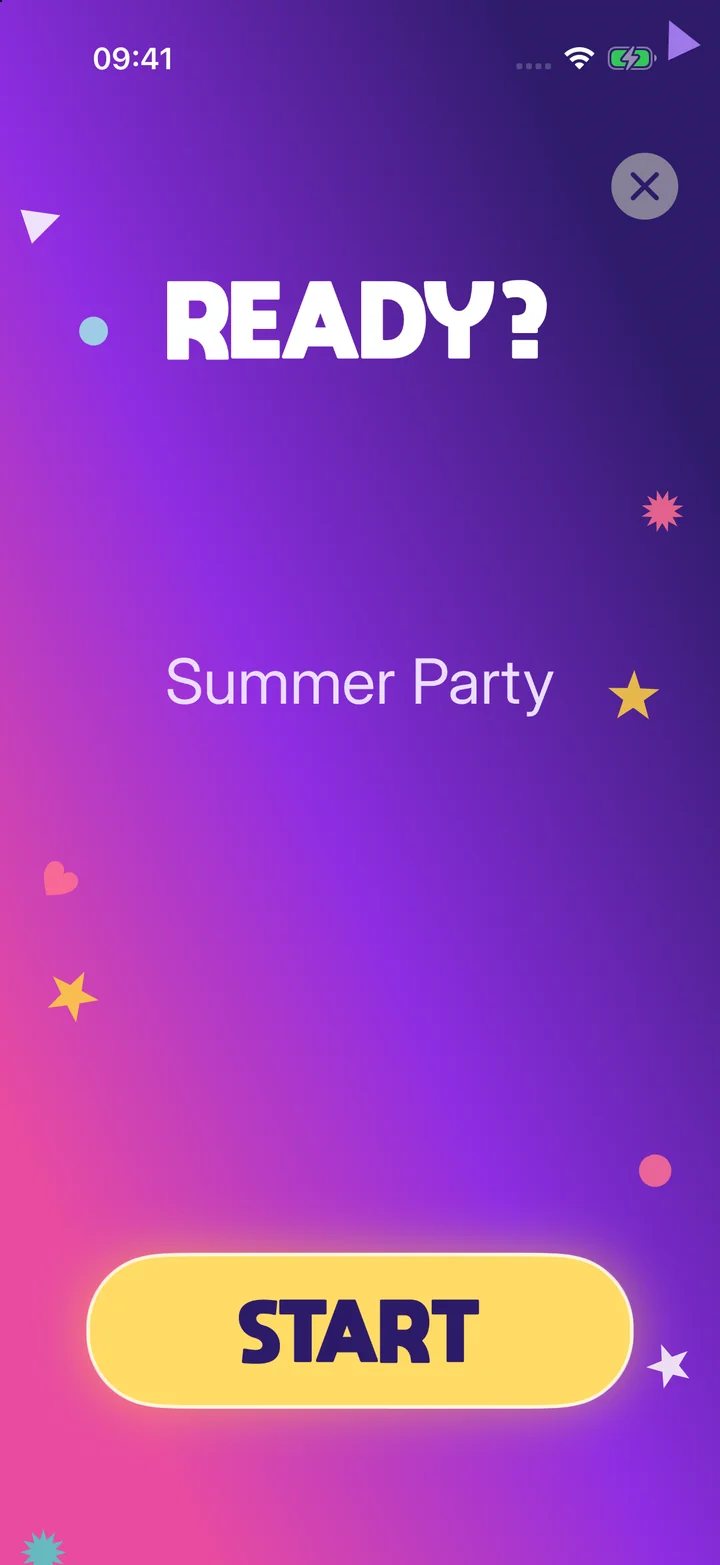
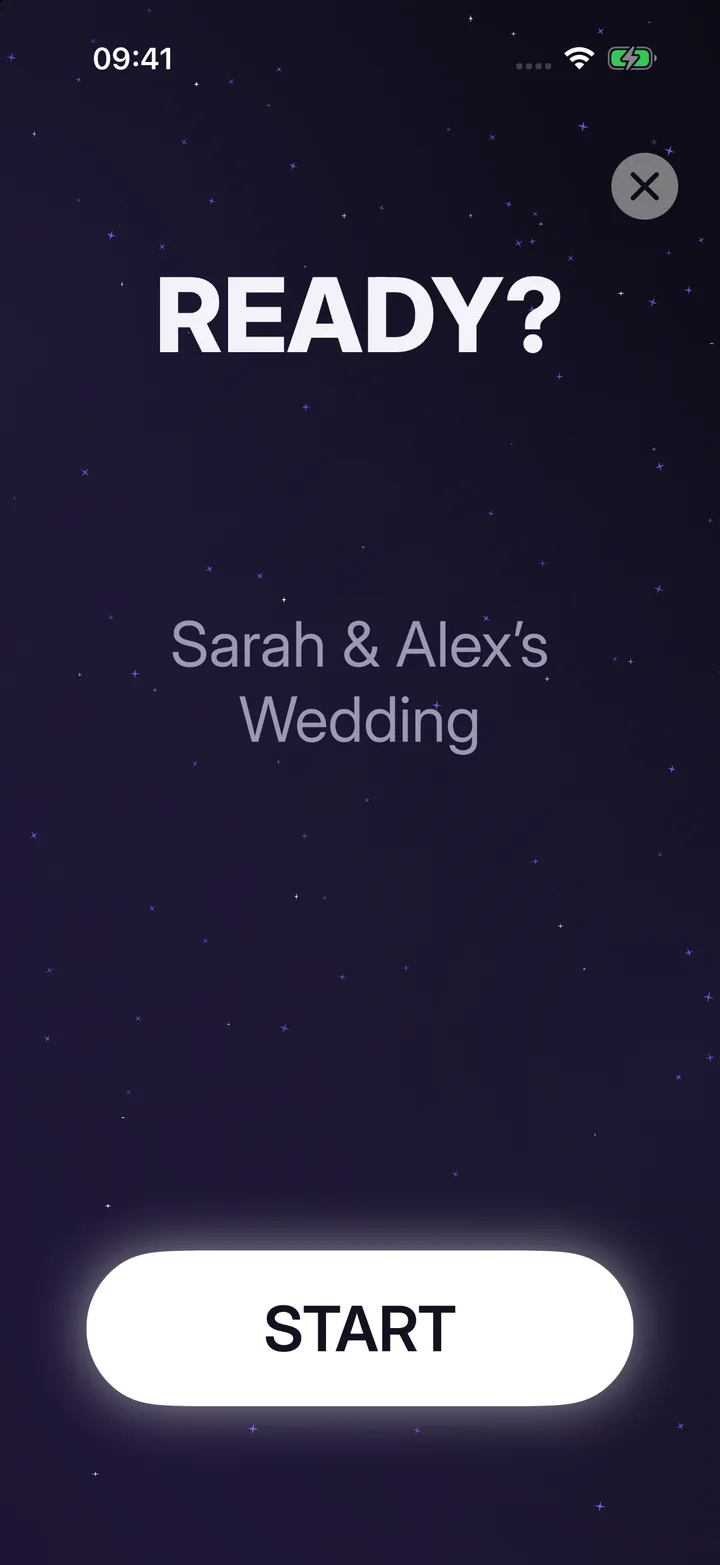
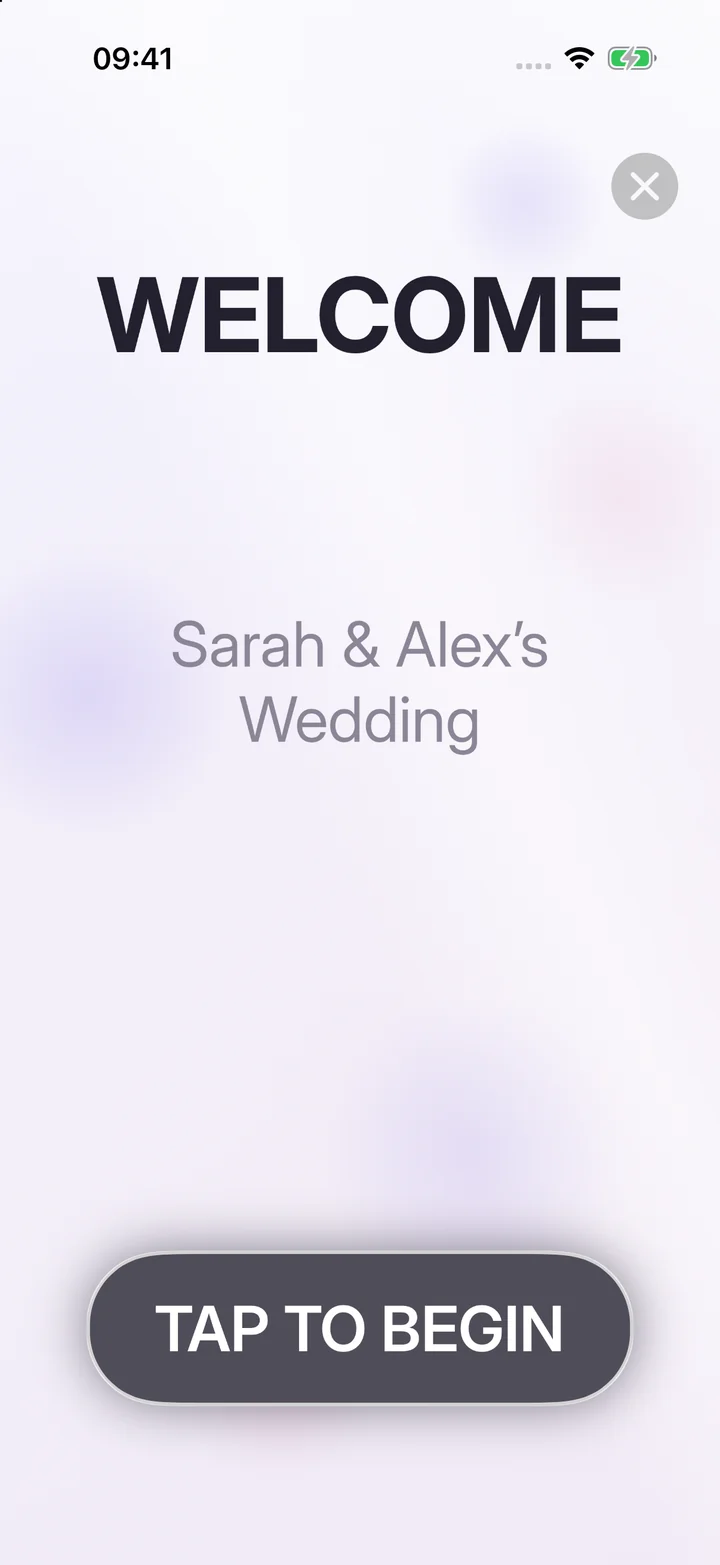
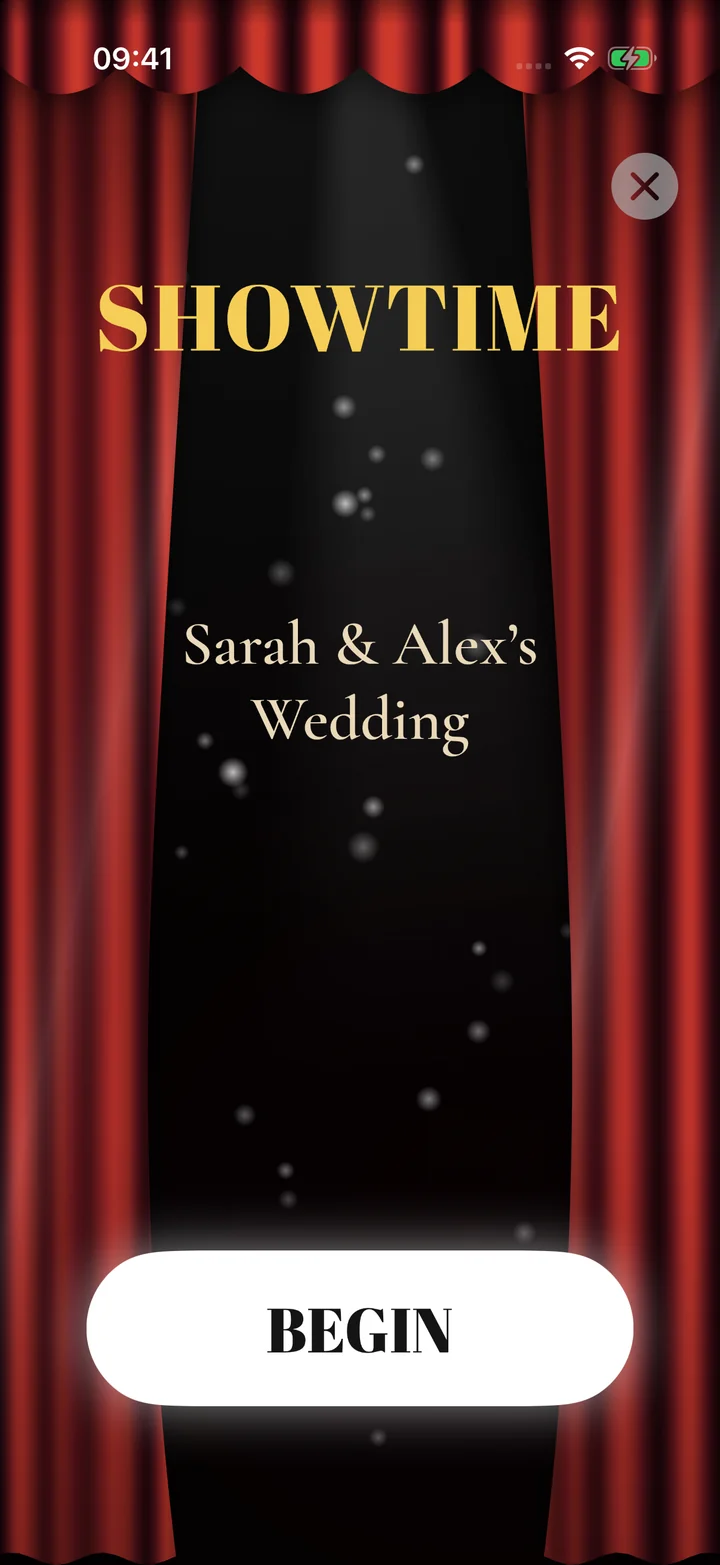
Choose a countdown that fits your event
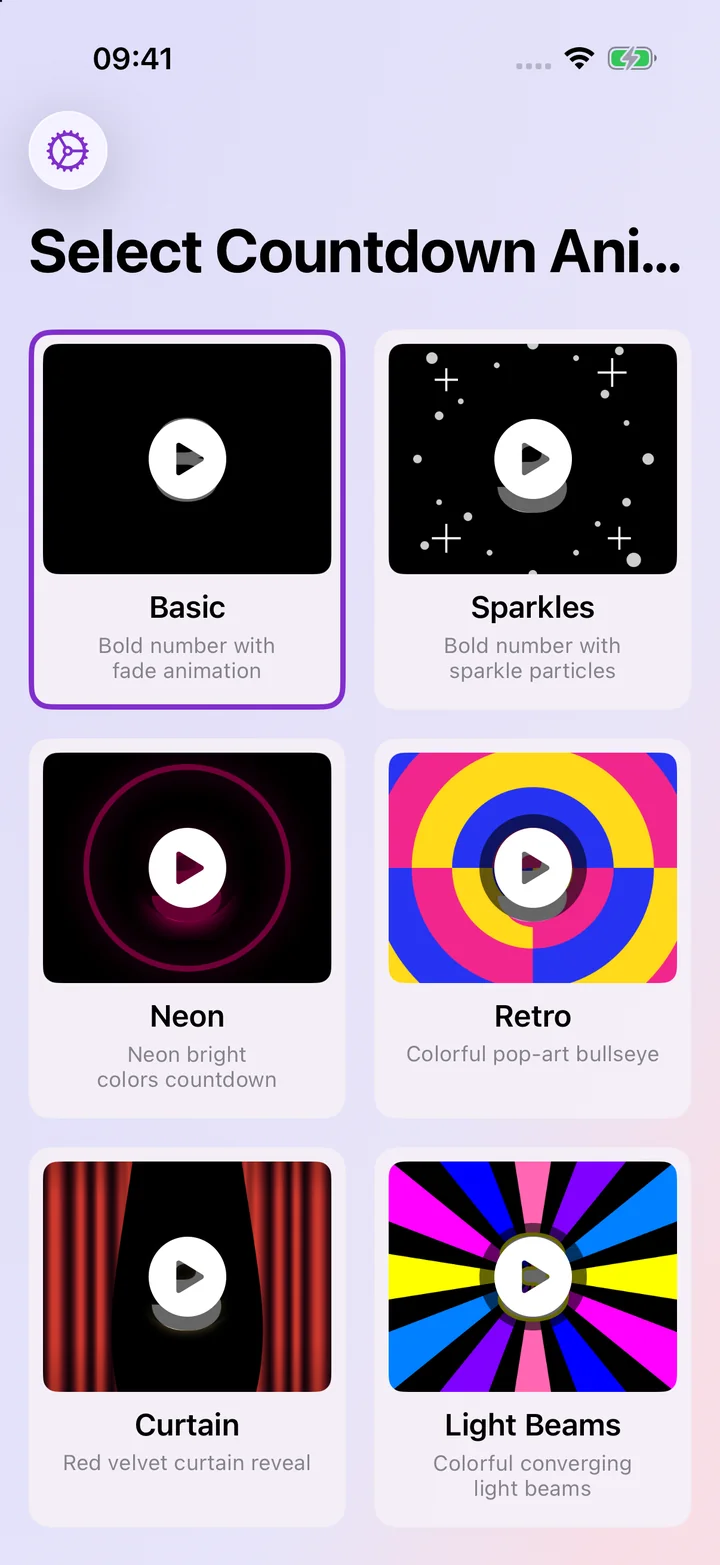
Try the six countdown animations. Each gives guests a visible 3, 2, 1 before the app takes the photo.
How it works
- Open your event and go to its guest sequence.
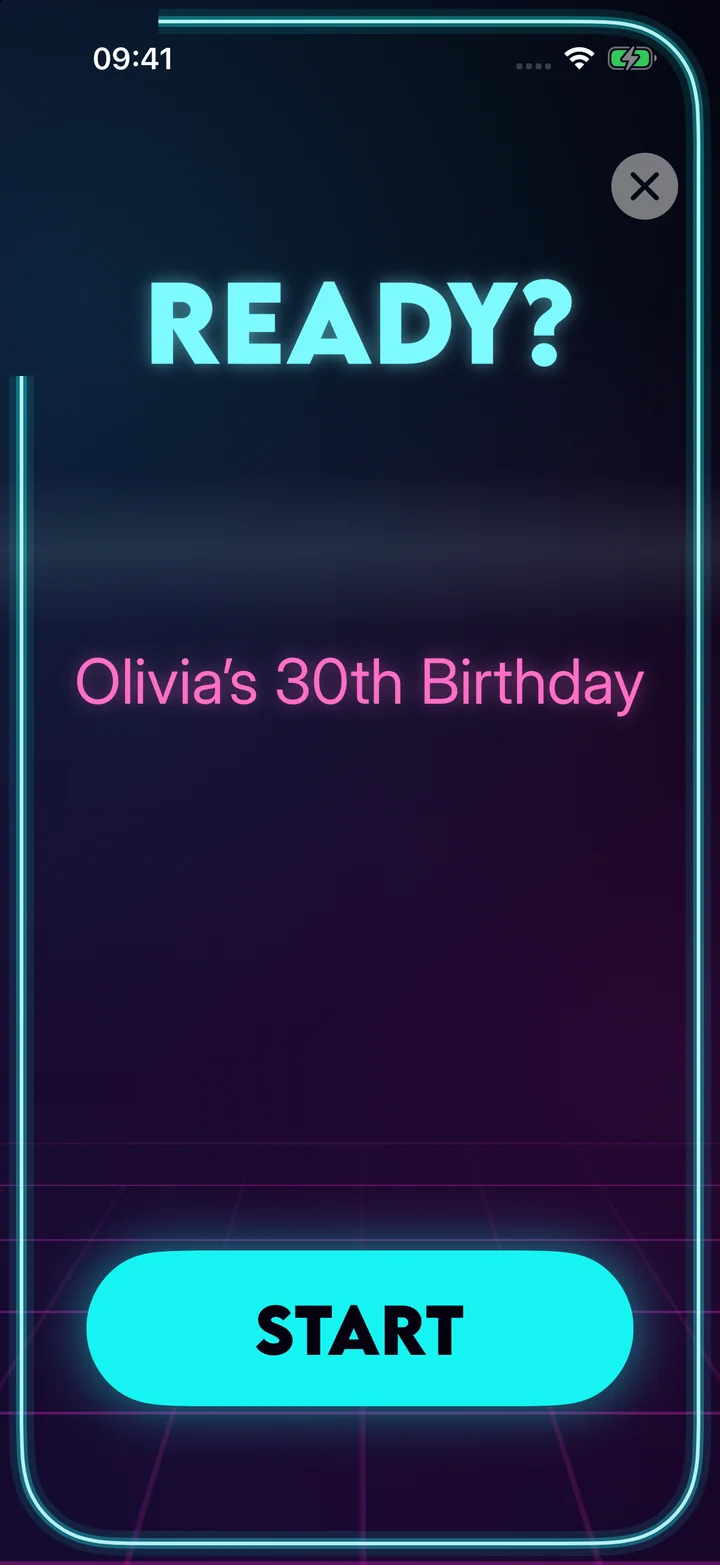
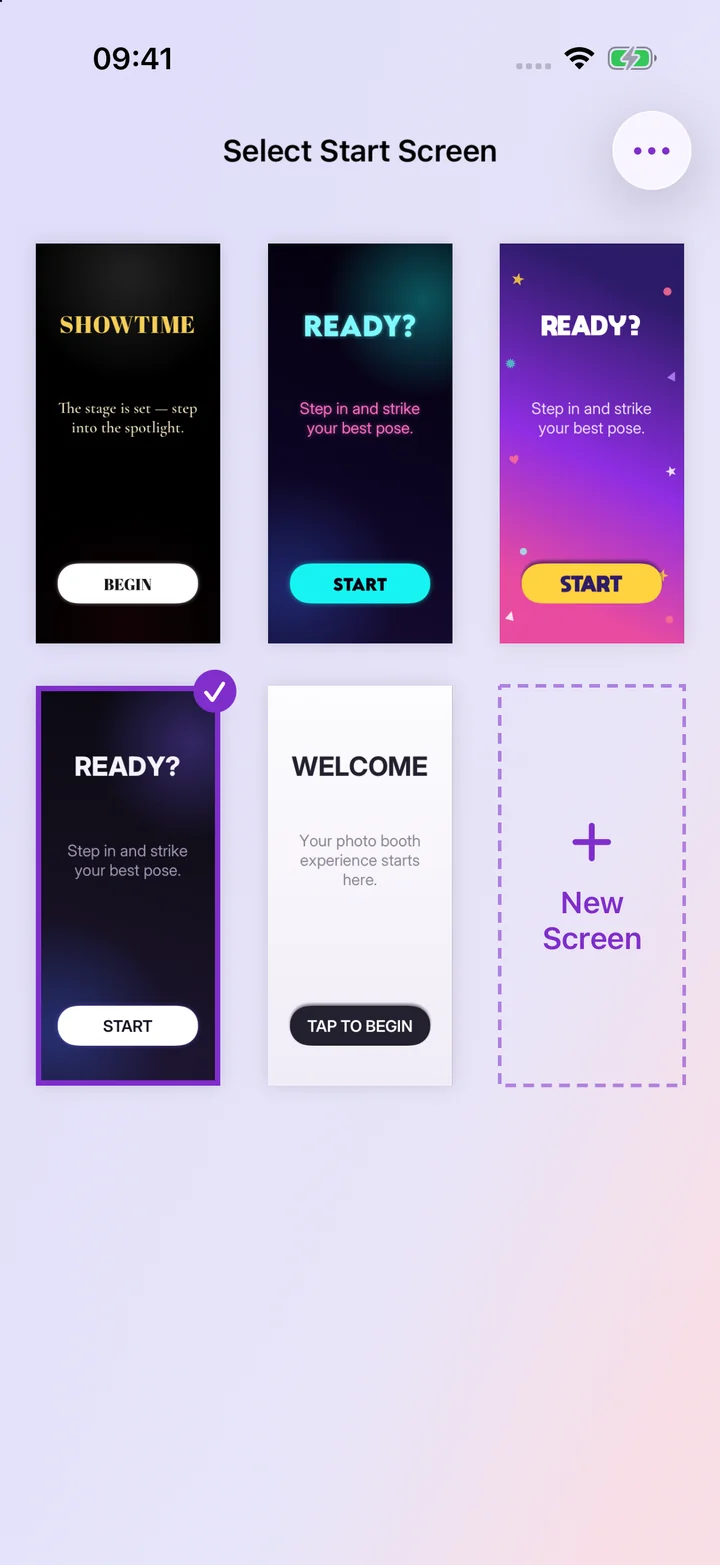
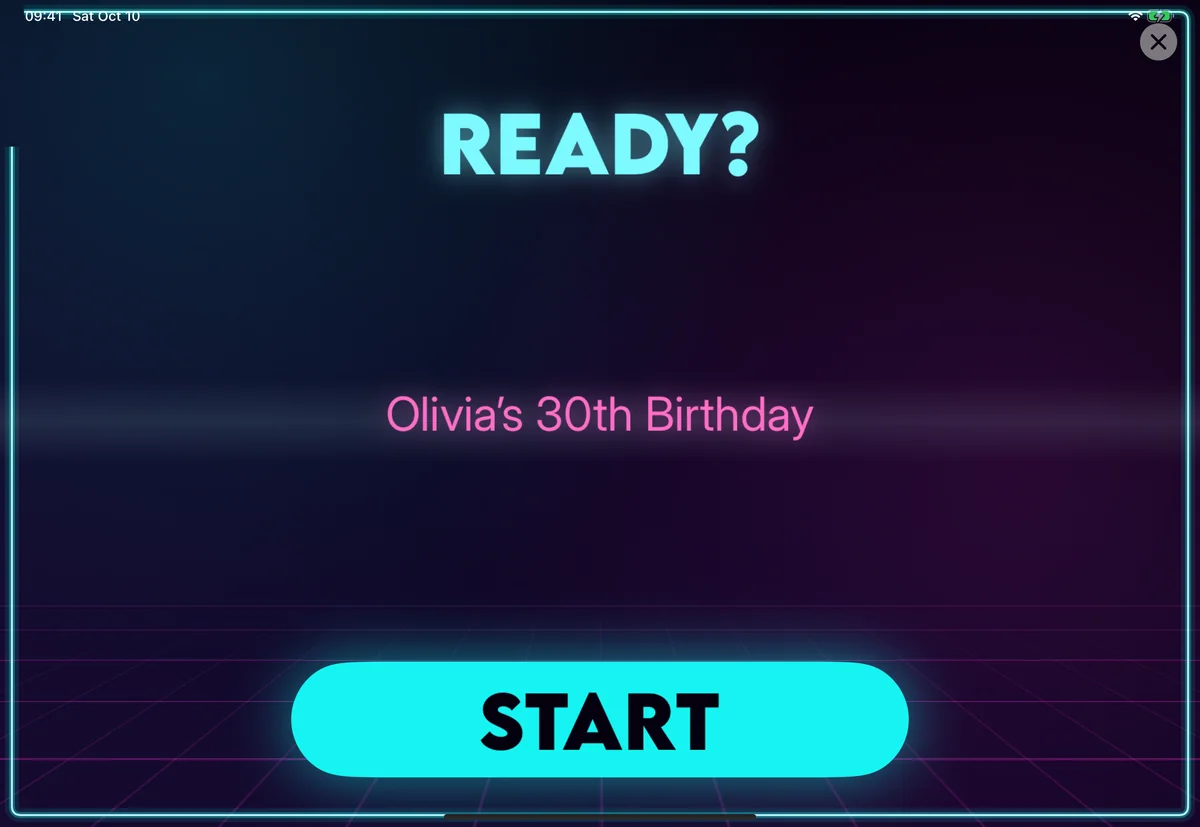
- Choose a welcome screen design. Guests tap it to start their session.
- Add the screens you need: instructions, a notice for guests to accept, or a Photo/GIF choice before the countdown.
- Pick one of the six countdown animations, then decide whether guests can review and retake their photos.
- Set up the sharing and goodbye screens, then run through the whole sequence yourself before the event.
Common questions
Do I have to use every screen?
No. Turn screens on or off for each event. A short sequence is often easiest for guests, so only add instructions or a notice when you need them.
Can guests retake their photos?
Yes, if you allow it. The review screen shows the result and can offer a retake before guests move on to sharing.
Can I change the wording on the screens?
Yes. Each screen has its own design, and you can edit its text and look so it matches your event.