Offline capture & Guided Access
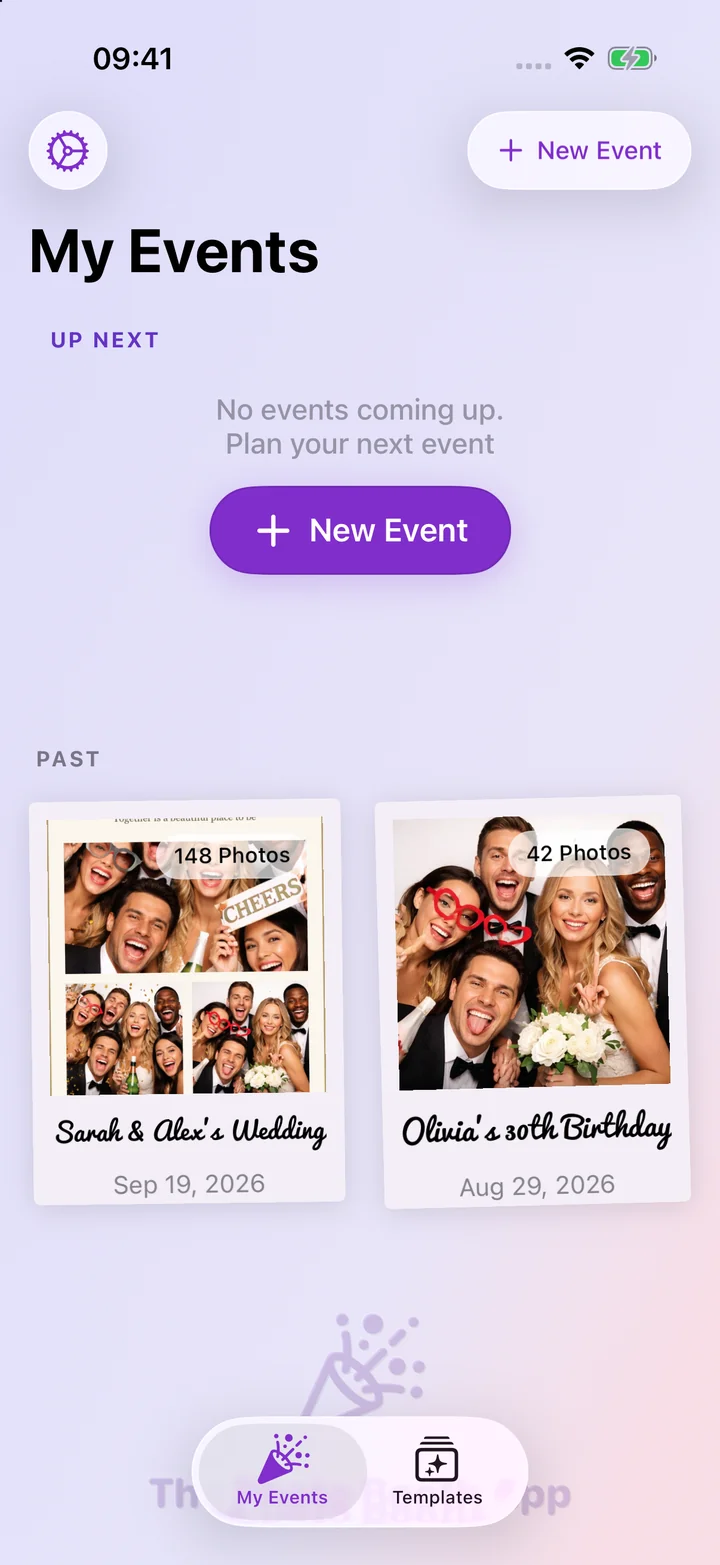
Take and save photos on the booth device without internet. You’ll need a connection for online sharing, gallery uploads, and sync, so test the venue’s Wi-Fi before the event.
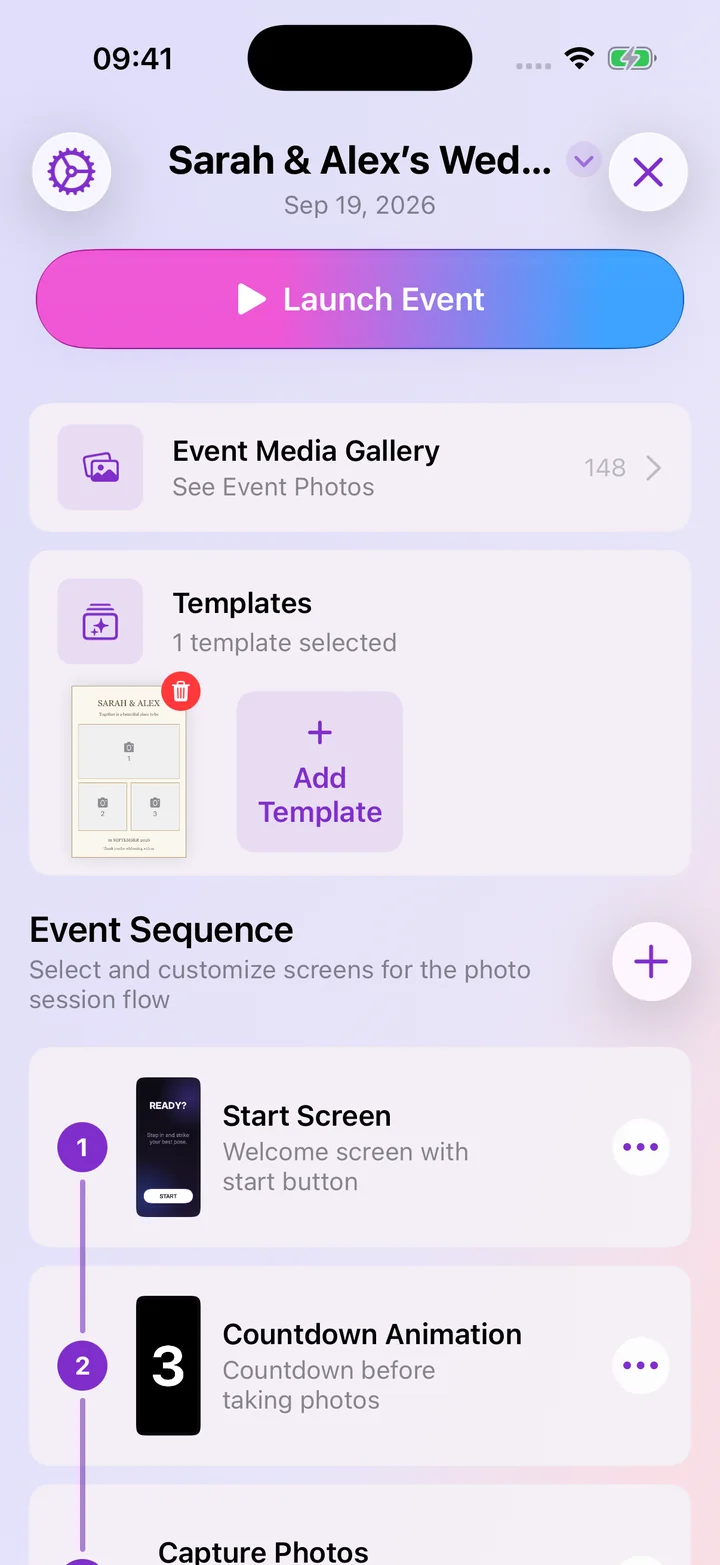
Use iOS Guided Access to keep guests in the app. Set up how you’ll exit it, then try the booth before leaving it with guests. Guided Access is an iOS setting, separate from the event settings shown here.
How it works
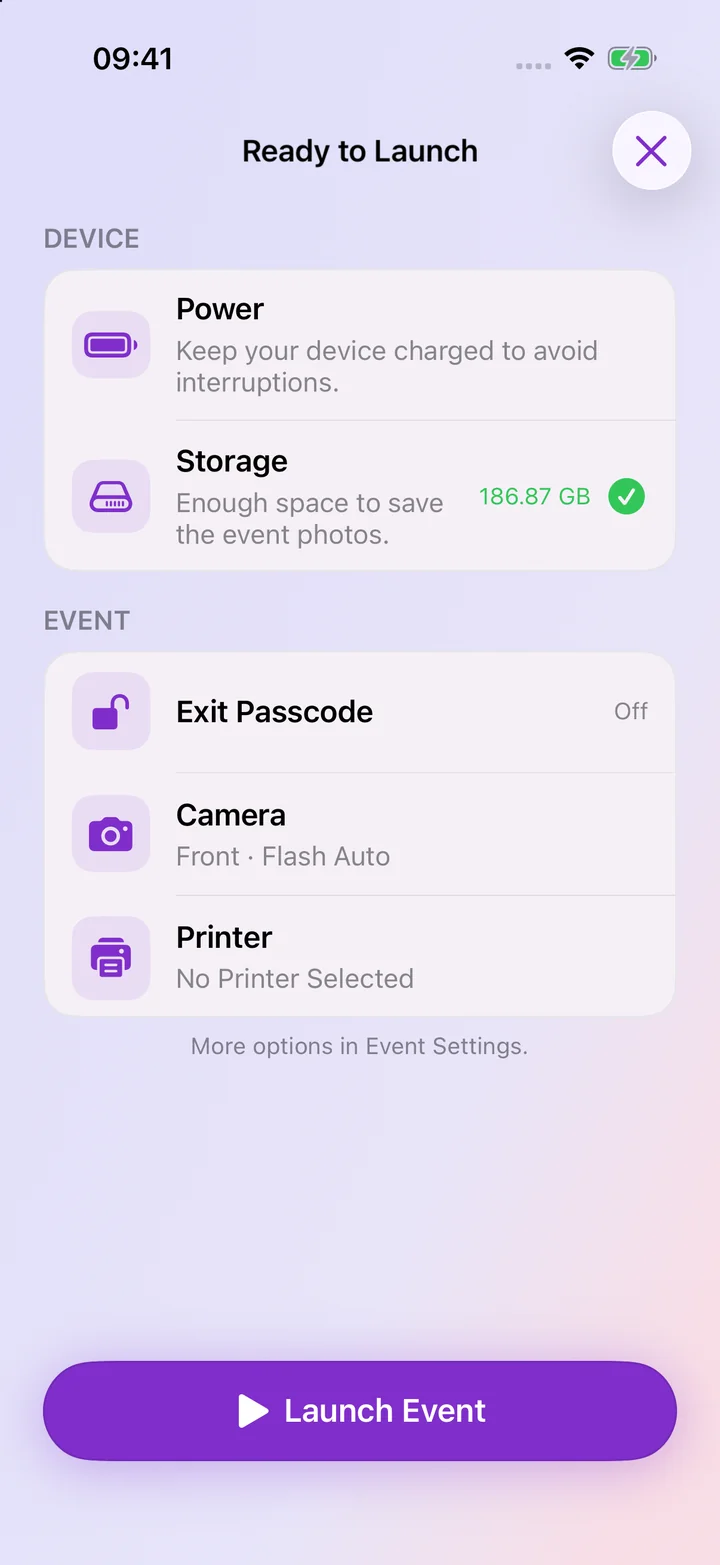
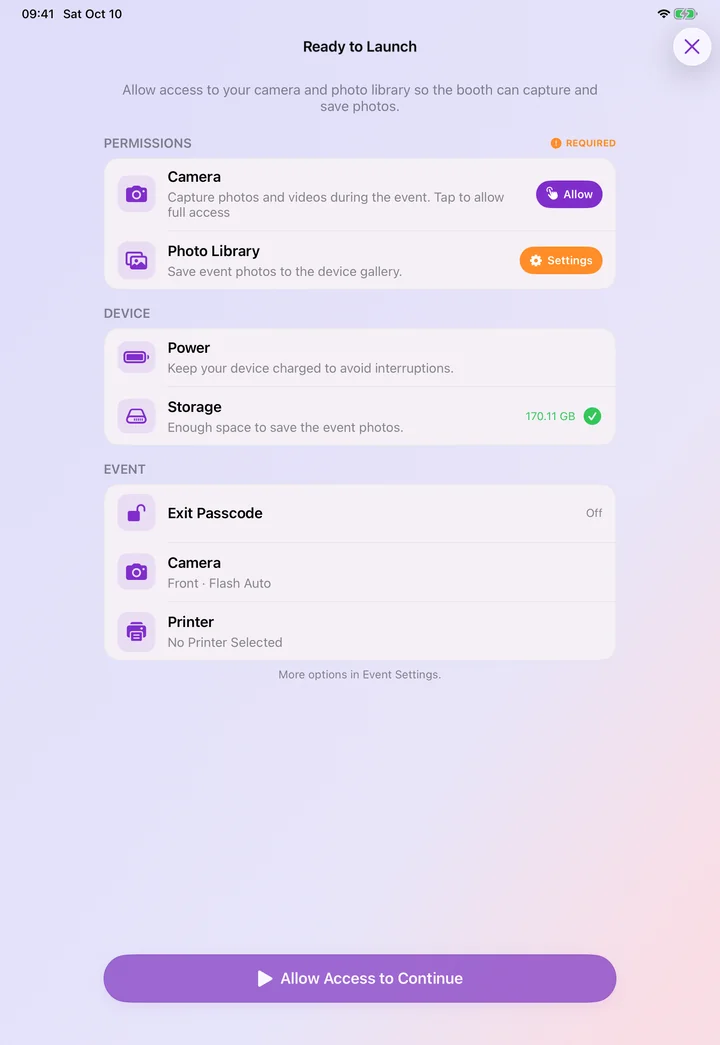
- Put the device on a sturdy stand, connect it to power, and check that it has room to save photos.
- Take a test photo without internet and confirm it saves to the event.
- Set up Guided Access in iOS Settings and decide how you’ll exit it.
- Open your event, start Guided Access, and run a full session the way a guest would.
Common questions
What needs an internet connection?
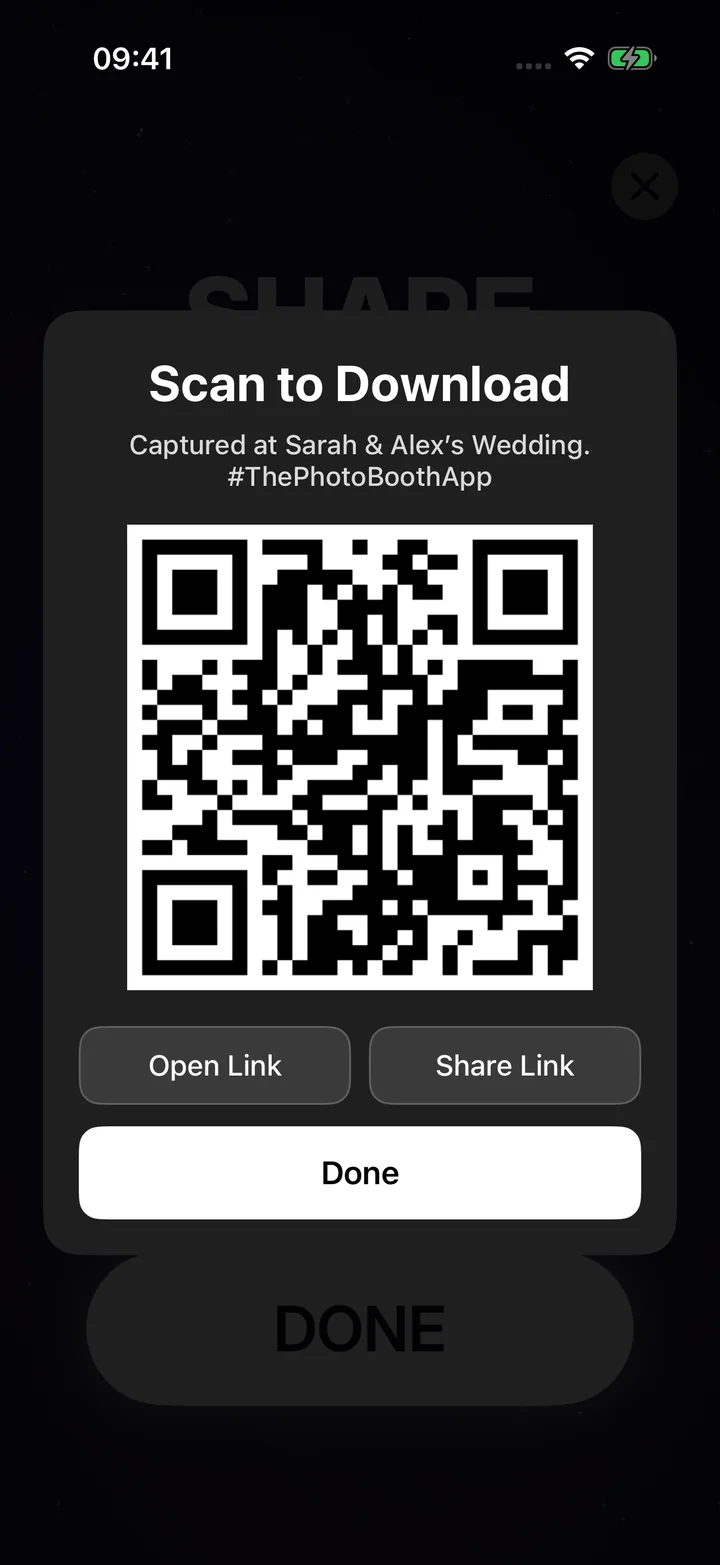
Online galleries, QR downloads, email, text messages, and account sync need a connection. Taking and saving photos on the device doesn’t.
What if the Wi-Fi drops during the event?
Keep taking photos and check that they’re saved on the device. Photos waiting to upload to an online gallery upload automatically once you’re back online. Tell guests how they’ll get their photos later.
Is Guided Access part of Photo Booth App?
No. Guided Access is an iOS and iPadOS setting. It keeps guests inside the app and prevents accidental taps from opening other screens.