What's New in PhotoBooth: October 2026
Bring your own designs, sync events across devices, manage your booth from the web and get ready faster with the latest PhotoBooth updates.
October 5, 2026 by Manuel Escrig · 4 min read
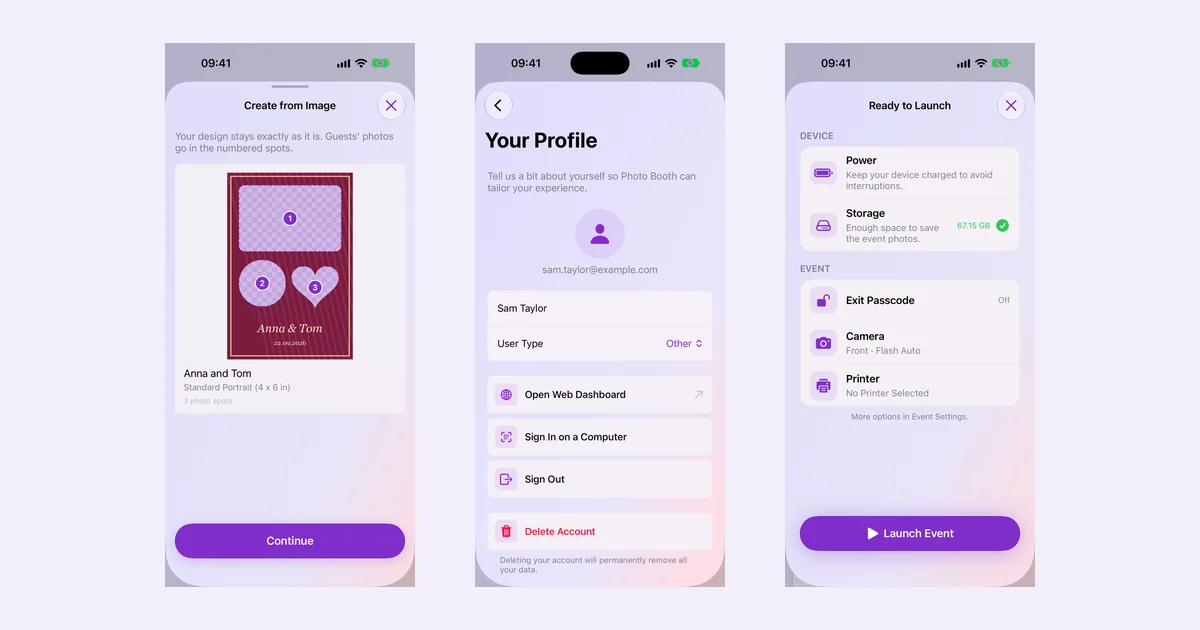
Over the last few updates, I have been working on the parts of PhotoBooth that happen before your guests take their first photo: bringing in your design, preparing an event on another device and checking the booth is ready to go.
Here is a look at what is new across versions 1.14.0, 1.15.0 and 1.16.0, with screenshots from the app.
Turn your own artwork into a template
If you already have a design for a wedding, birthday or brand event, you can now bring it straight into PhotoBooth. Open Create Template → From Image and choose a PNG or JPG from your photo library or Files. You can also send an image from Photos with Share → PhotoBooth.
Your artwork, fonts and colours stay in place. Transparent openings, plain photo boxes and even sample photos in a finished design become spots for your guests' photos. Round, heart-shaped and arched openings keep their shape.
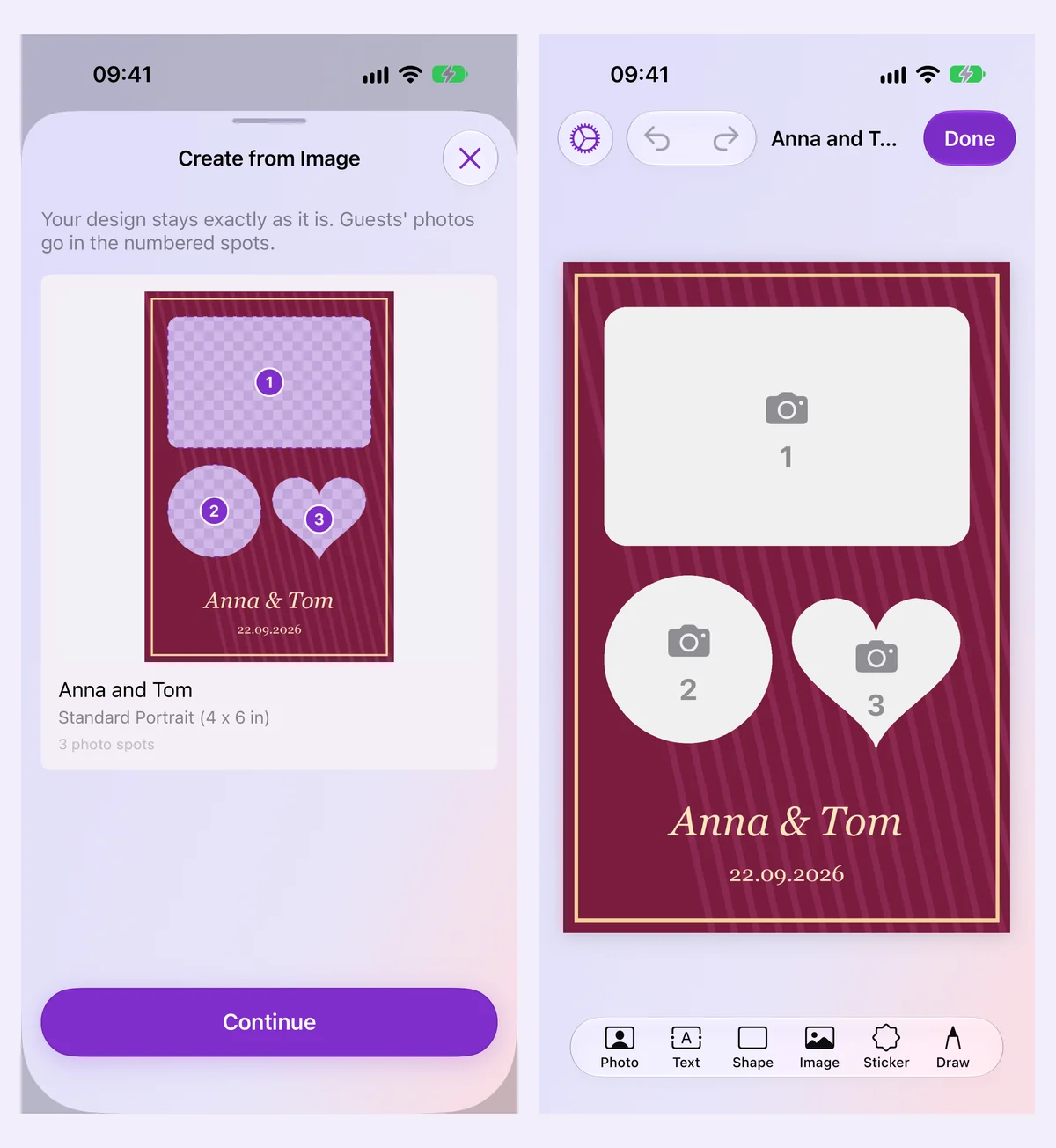
PhotoBooth picks the nearest print size without stretching the design. If it needs more than a small trim, you can crop to fit, use a custom size or choose another image.
The imported artwork starts locked so you can move and resize the photo spots right away. You can lock any other element from its ••• menu, press and hold to unlock it, or use Replace Image to bring in revised artwork. If its openings change, the photo spots adjust too.
Back up your designs and work across devices
Sign in with Apple now backs up your custom templates, custom flow screens and events. Sign in on another device to keep working with them there; edits and deletions sync automatically. Events using built-in designs also open with the same template and flow screens across your signed-in devices.
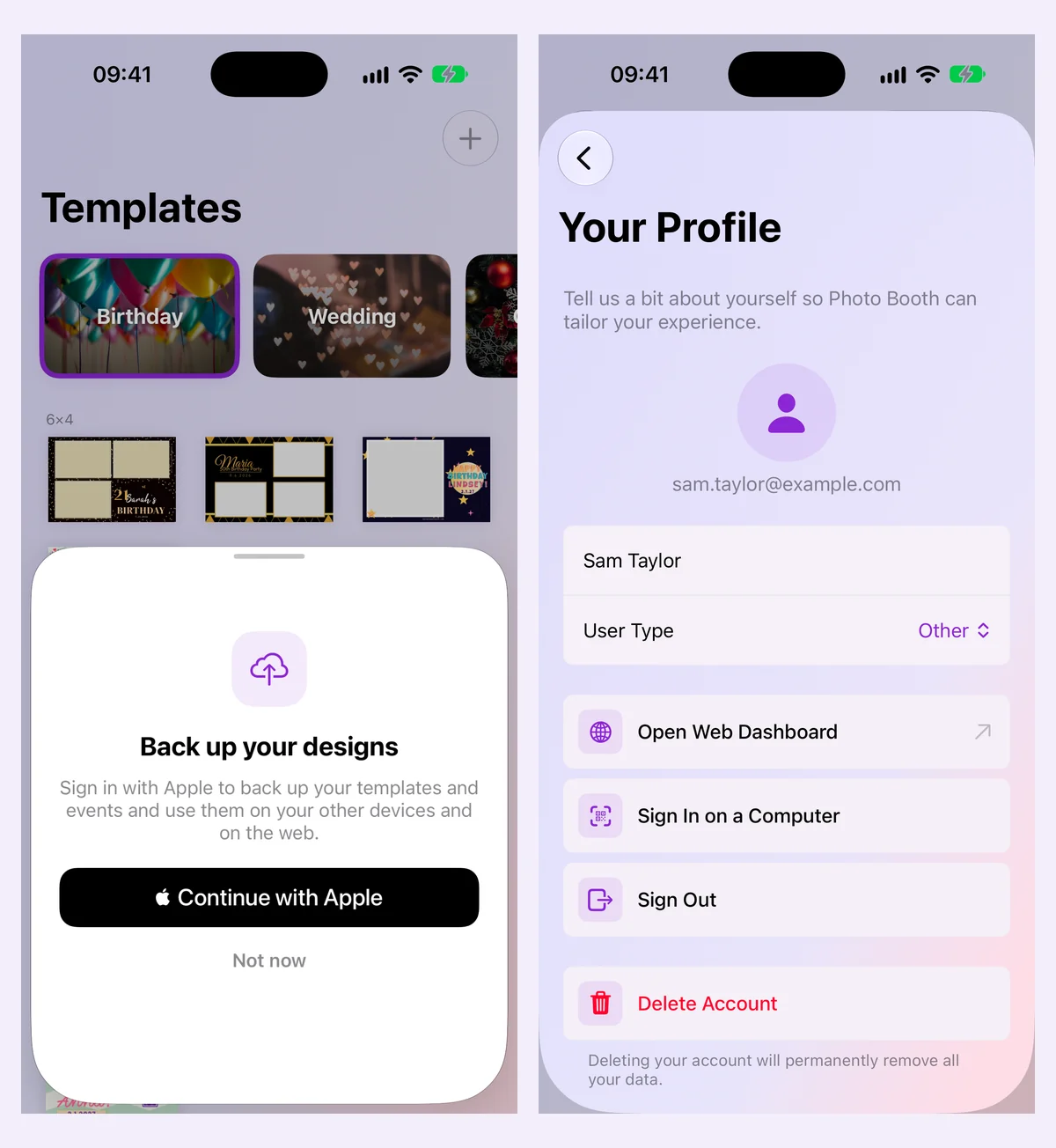
Free accounts can sync one custom template, while Premium accounts can sync all their designs. Designs beyond your plan's allowance stay on the device. Signing out keeps your local designs and events too, and they are not mixed into a different account you sign in with.
Prepare and manage your booth from the web
The new web dashboard lets you view and edit events and templates from a computer. You can also manage online galleries, download their photos and print a QR sign for guests.
From Your Profile, tap Open Web Dashboard to open it with a one-time Safari link. For a computer, choose Sign In on a Computer, scan the code shown in the browser and approve the sign-in in the app.
Design sync and online galleries serve different purposes. Syncing an event keeps its setup available across devices; event photos and guest contact details stay on the booth device. An online gallery is the separate way to share photos with guests. Creating one now asks you to sign in so it belongs to your account, and existing galleries are linked to your account automatically.
Make the final checks without leaving the launch screen
You can now change the exit passcode, camera and printer directly from Ready to Launch. Tap the relevant row to adjust it before starting the event.
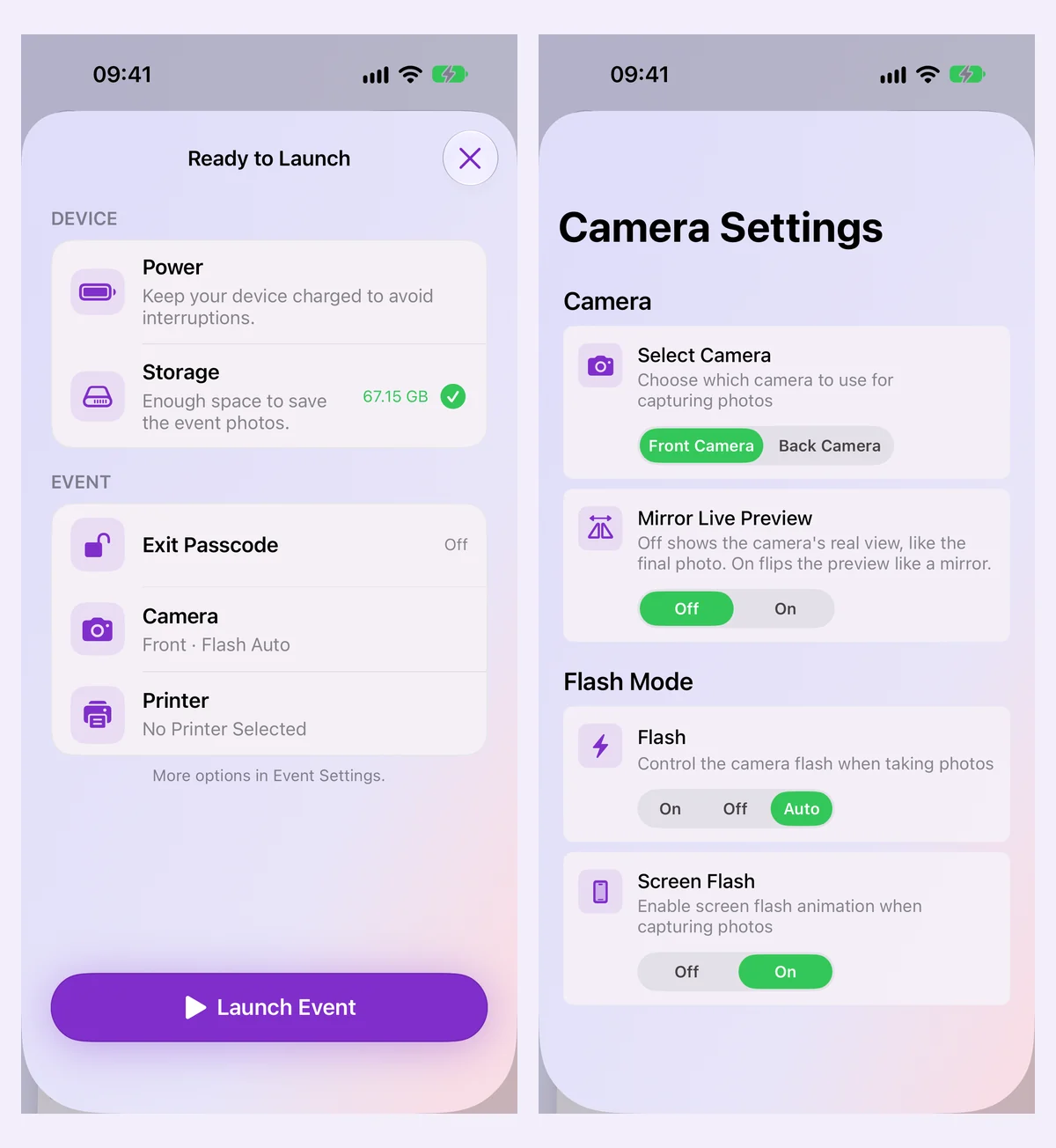
Camera Settings also makes Mirror Live Preview easier to understand. Leave it off to show the camera's real view, matching the final photo. Turn it on if you want guests to see a mirror-style preview during the countdown. Your choice holds each time the camera starts.
Landscape capture has been fixed too: the live preview stays upright and the booth takes landscape photos when the device is held that way.
Use Siri and Shortcuts to reach your events
PhotoBooth now works with Siri, Spotlight and Shortcuts. You can create an event, open an event's launch screen or ask how many photos it has, without navigating through the app first.
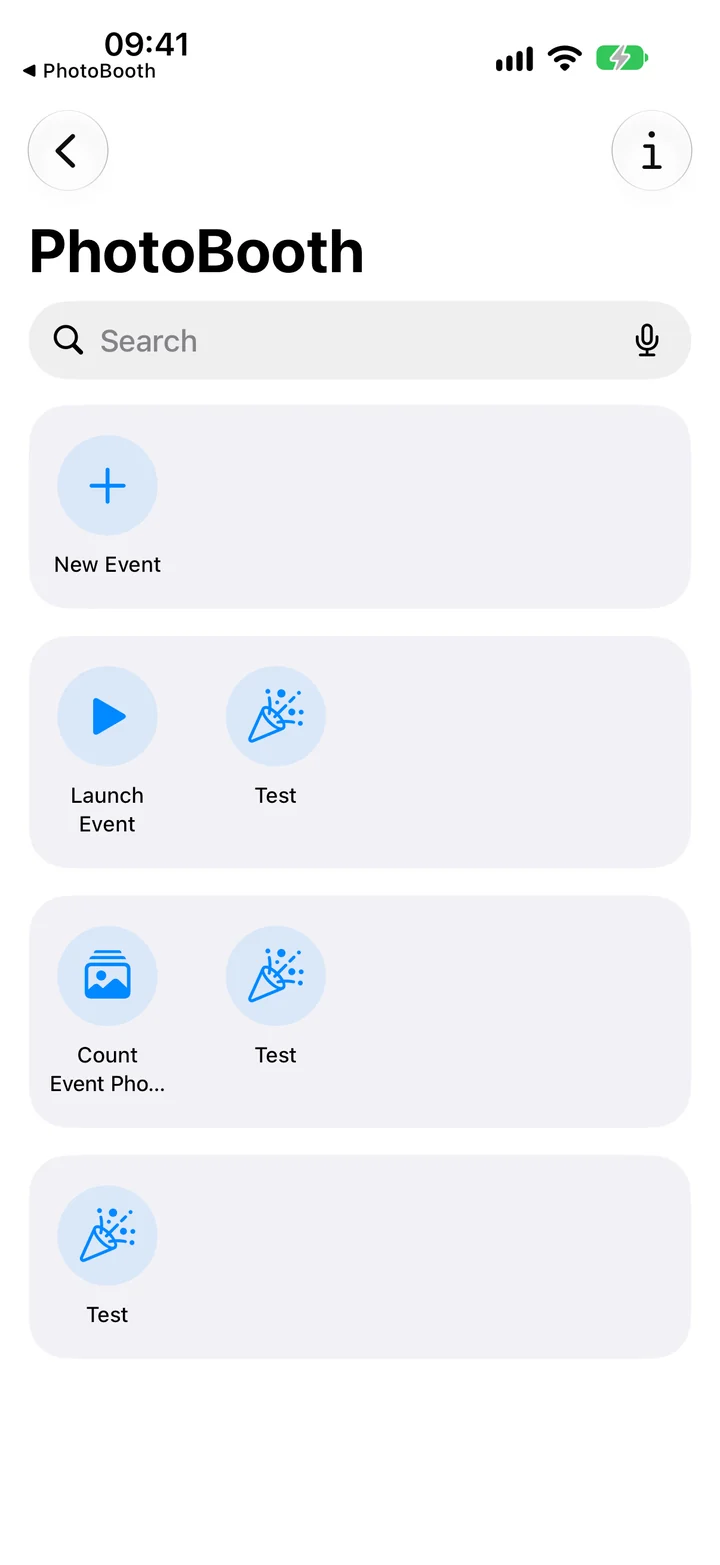
Try saying “Start my event in PhotoBooth” to open the launch screen, or “How many photos in PhotoBooth?” to check how the booth is doing. Events also appear in Spotlight search. A running event is never interrupted by these actions.
Smoother galleries and a personal thank-you
The latest update brings faster photo and GIF previews, smoother gallery browsing and saving, and photo uploads that keep working in the background.
There are smaller improvements throughout the app too: consistent close buttons in pickers, gentle haptic feedback when moving and aligning elements in the editor, a clearer rotation handle, and Neon borders that follow the screen's rounded corners.
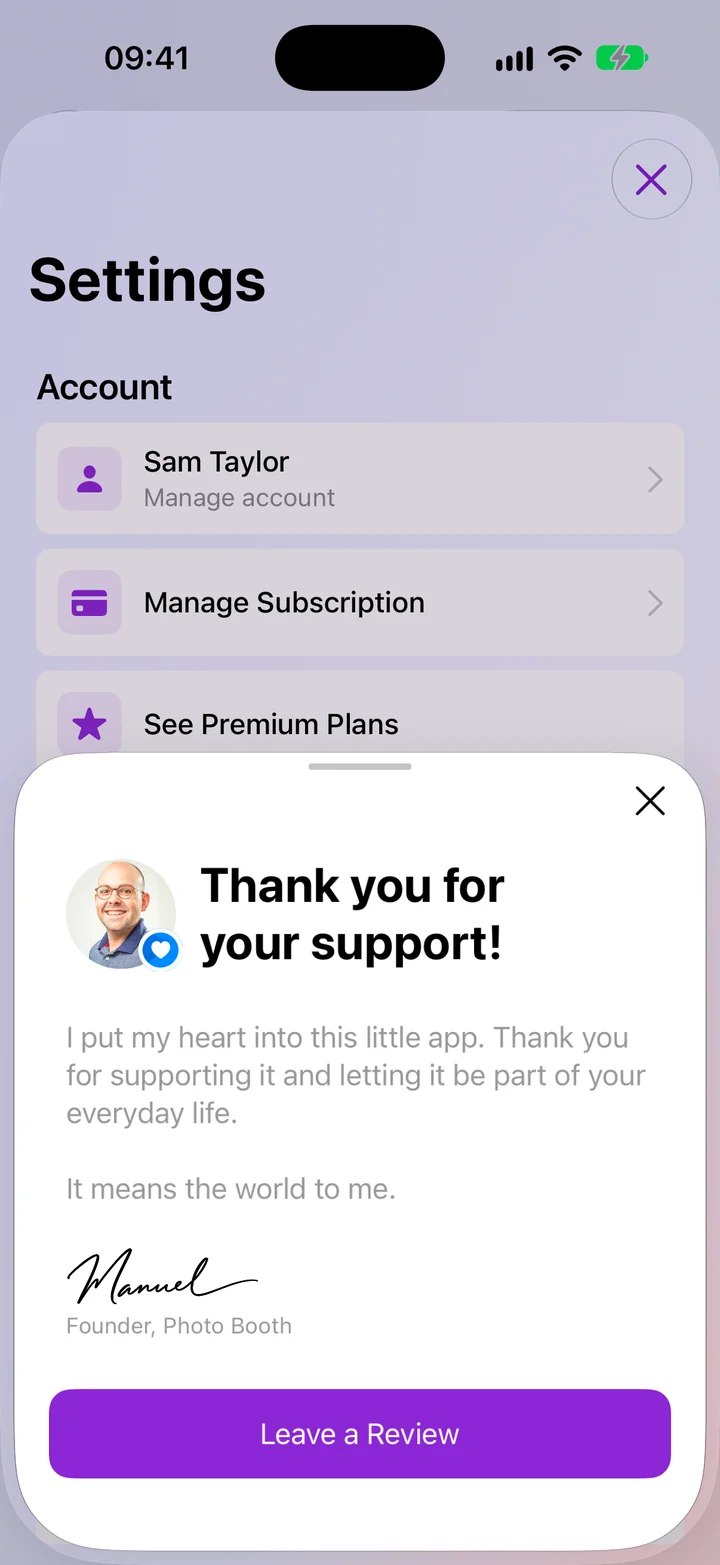
Premium subscribers will find A Personal Thank You! in Settings, with a note from me and a quick way to leave a review. I build PhotoBooth as a solo developer, and your support helps me keep improving it.
You can read the full details in the release notes. If you have an idea for your next event, or something could work better, please send me your feedback.
Thank you for reading ❤️
Manuel Escrig
 Share on Facebook
 Share on X
Read More From Blog.
How The Photo Booth App Works
A step-by-step look at how The Photo Booth App helps you create an event, choose templates, launch the booth, capture photos, and share results.